Workflow Actions
Move a submittal through its review cycle with the actions of three actor groups — the Creator, the Assignee (coordinating reviewer), and optional Third-Party Approvers: Approve (A/B), Reject (C), For Info (D), Issue To, the three Reassign variants, Cancel, Resubmit, Resubmit & Supersede, Take Creator / Take Approver, and Edit / Delete on drafts.
Open a submittal to see your available actions on the bottom action bar; the More menu lists every action grouped by your roles:
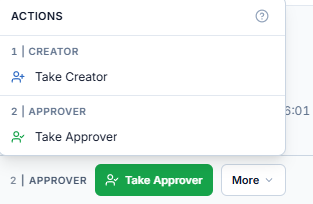
Actions are grouped by actor role, each group numbered and labelled exactly as the app writes it — 1 | Creator, 2 | Approver, 3 | Third Party Approver — and only the groups that apply to you are shown. The same labels appear on the bottom action bar, in front of the buttons of the group you hold. For the labels on mobile, see Workflow Actions on the mobile side.
Who can do what
| Status | 1 | Creator | 2 | Approver | 3 | Third Party Approver |
|---|---|---|---|
| Draft | Edit, Delete | — | — |
| Submitted / Re-Submitted | Edit, Reassign Creator, Cancel | Approve, Reject, For Info, Issue To, Reassign Coordinator, Cancel | — |
| In-Progress | Reassign Creator, Cancel | Approve, Reject, For Info, Issue To, Reassign Coordinator, Cancel | Approve (A/B), Reject (C), For Info (D), Reassign |
| Rejected (C) | Resubmit, Reassign Creator, Cancel | (same as In-Progress) | (same as In-Progress) |
| Approved (A/B) / For Info (D) | Resubmit & Supersede, Reassign Creator, Cancel | (same as In-Progress) | (same as In-Progress) |
| Cancelled / Superseded | none | none | none |
Administrators can act as any group. Users in no group see only Take Creator / Take Approver.
Inside an action dialog
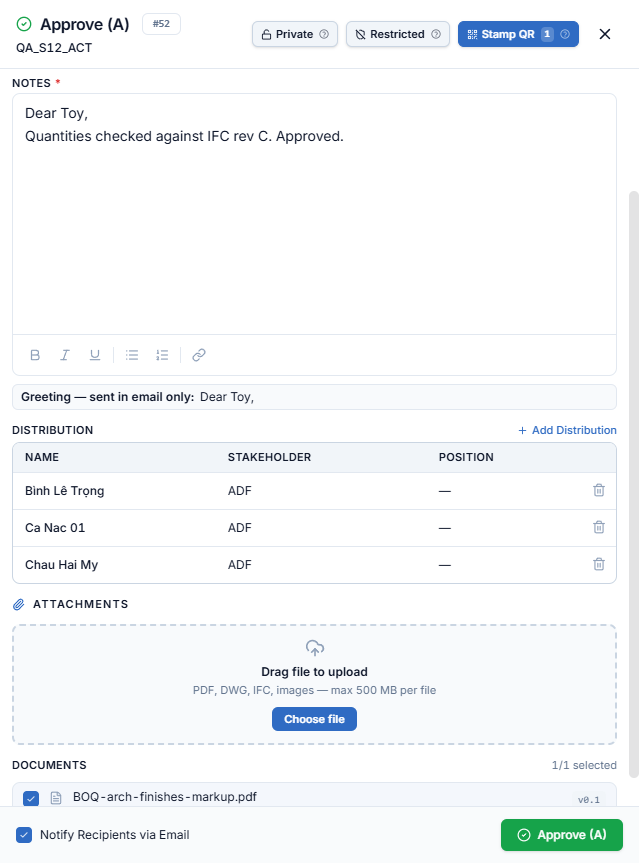
Every action opens a panel on the right. Most of them share the same building blocks; which ones appear depends on the action and your role.
| Part | What it does |
|---|---|
| Private (header) | Only the creator, the assignee and the Issue To users can see the submittal. Toggle off to share it with the project. |
| Restricted (header) | Limits visibility to the assigned reviewers only. Use it for confidential drafts and internal approvals. |
| Stamp QR (header) | Shown on the Approver's Approve (A/B) and For Info (D). Stamps a QR code on every PDF attached to this action; non-PDF files are skipped. See Stamp QR for where the stamp goes. The badge counts the PDFs that will be stamped. |
| Notes | Required. Rich text with bold, italic, underline, lists and links. |
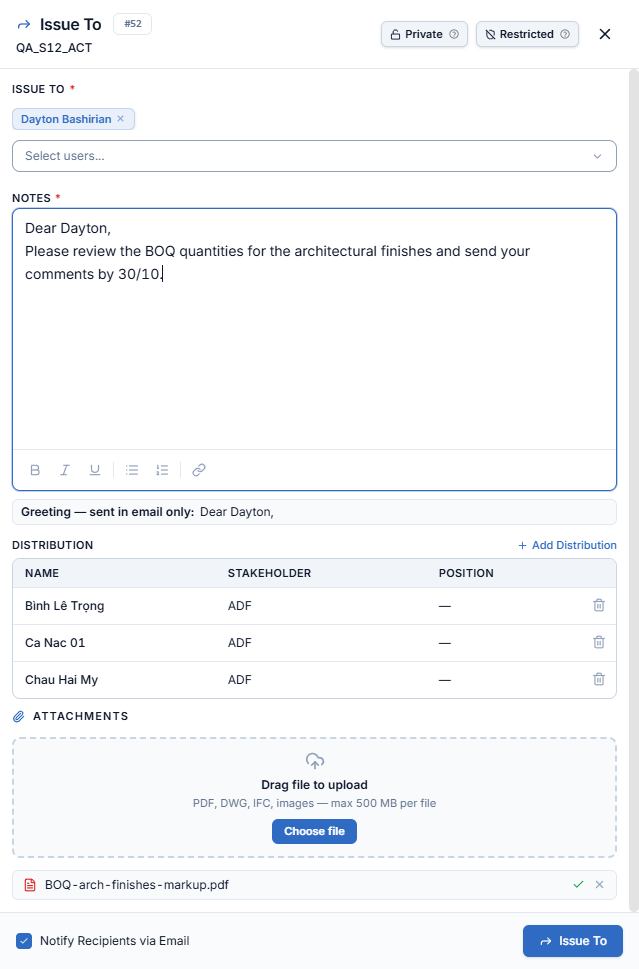
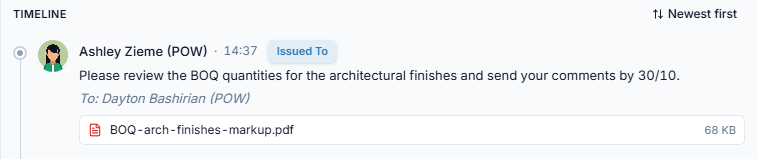
| Greeting | If the note starts with a greeting such as Dear Toy,, AECIS shows it under the box as Greeting — sent in email only. The greeting opens the email, but is trimmed from the note saved on the Activity timeline. |
| Distribution | Pre-filled with the submittal's distribution list. + Add Distribution adds people; the trash icon removes someone for this action. |
| Attachments | Drag files onto the box or click Choose file. PDF, DWG, IFC and images, up to 500 MB per file. The files are attached to this action. |
| Documents | Shown when the submittal already has documents. Tick the ones to attach to this action (1/1 selected), for example to stamp them with the QR code. |
| Notify Recipients via Email (footer) | Ticked by default. Untick it to record the action without emailing the assignee and distribution list. |
1 | Creator
The submitting side's group. Besides the actions below it also holds Reassign Creator and Cancel, both described further down.
Resubmit
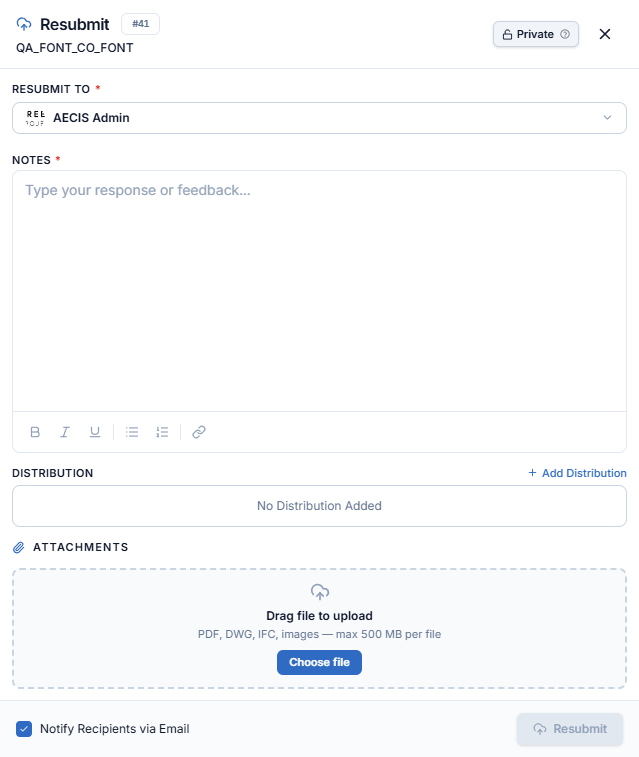
When a submittal is Rejected (C), the Creator corrects the documents and resubmits the same record:
-
Open the rejected submittal and click Resubmit (action bar or More menu).
-
Confirm or change the Resubmit To assignee (required, pre-filled with the current assignee).
-
Enter Notes (required), attach the corrected documents, review the distribution.
-
Confirm. The status moves to Re-Submitted, and the documents' major version steps up — for example
0.0 → 1.0, or1.0 → 2.0.
Resubmit & Supersede
When a submittal is Approved (A/B) or For Info (D) but needs to be replaced (e.g. a design change):
- Open the approved item and choose Resubmit & Supersede.
- A full create-style form opens, pre-filled from the original — Name, Description, Type, Discipline, and Assignee are required.
- Confirm. The system creates a new linked submittal and marks the original Superseded.
Key behaviors:
- The new submittal's document version restarts from
0.0— it begins its own version history. - The two records stay linked in the revision chain, navigable from the detail panel's header popover (
Rev 00 / 01 / 02…). - Only unstamped documents move to the new record — stamped/approved documents remain on the old one as the historical record.
- The moment Supersede fires, the old record is blocked from further actions.
| Situation | Action | Result |
|---|---|---|
| Rejected (C) | Resubmit | Same record → Re-Submitted |
| Approved (A/B) or For Info (D) | Resubmit & Supersede | New record created; original → Superseded |
Edit & Delete
Web-only, and the only actions tied to drafts:
- Edit — available while the submittal is Draft, Submitted, or Re-Submitted; opens the create form in edit mode.
- Delete — available on Drafts only; removes the draft immediately.
2 | Approver
The coordinating reviewer's group — the only one whose actions change the submittal's status.
Approve (A/B)
-
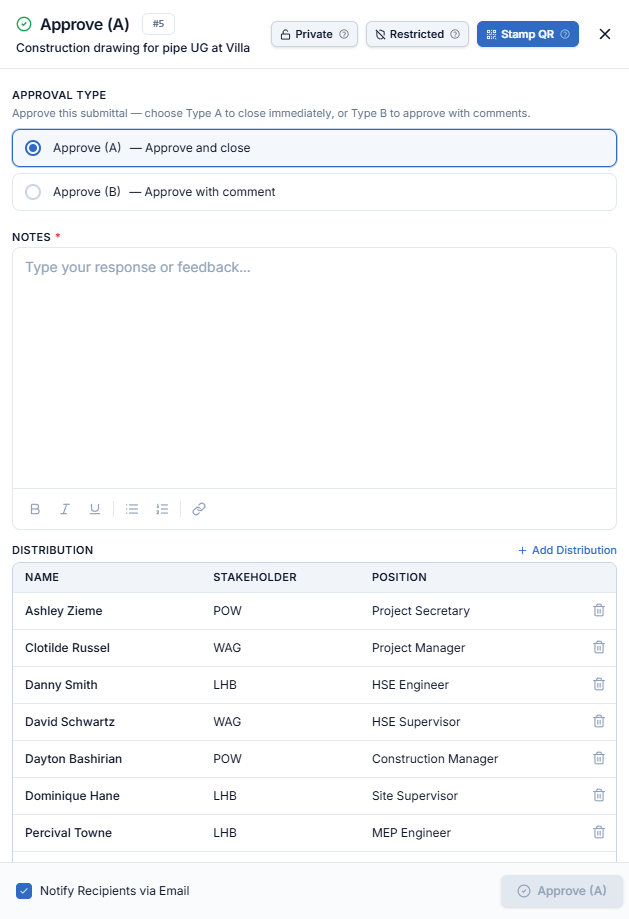
Open the submittal and click Approve (A/B) on the action bar.
-
Choose the Approval Type:
- Approve (A) — approve and close.
- Approve (B) — approve with comments.
-
Enter Notes (required), review the Distribution list, attach files if needed.
-
(Optional) Enable Stamp QR to apply a QR-code review stamp to the PDF documents.
-
Confirm. The status moves to Approved (A) or Approved (B).
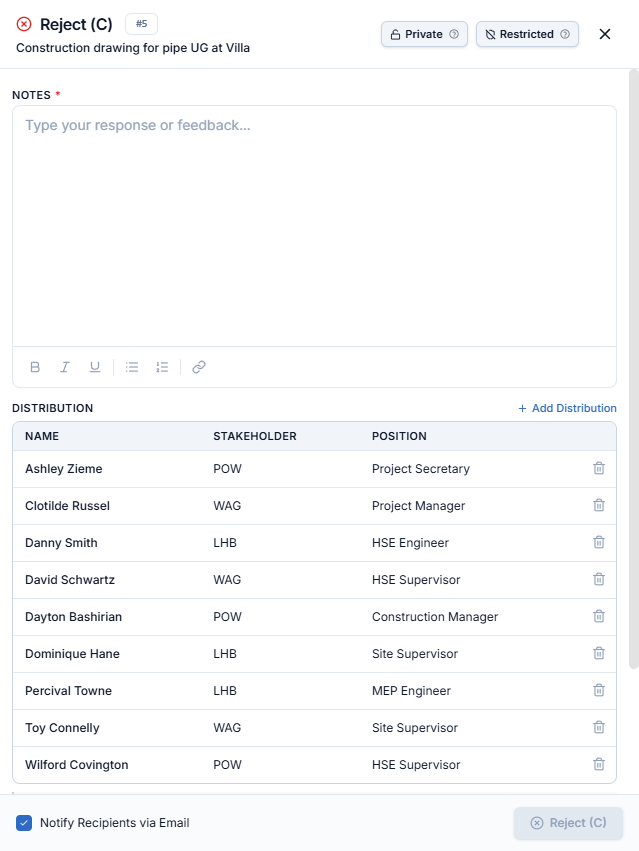
Reject (C)
-
Click Reject (C) on the action bar.
-
Enter Notes (required) explaining what must be corrected, and confirm.
-
The status moves to Rejected (C) — the Creator can now Resubmit.
For Info (D)
Choose For Info (D) from the More menu, enter Notes, optionally apply a Stamp QR, and confirm. The status moves to For Info (D).
Stamp QR
When Stamp QR is on, AECIS stamps every PDF attached to the Approve (A/B) or For Info (D) action, and the stamped copies are what appear under the action on the Activity timeline. Non-PDF files are attached unchanged.
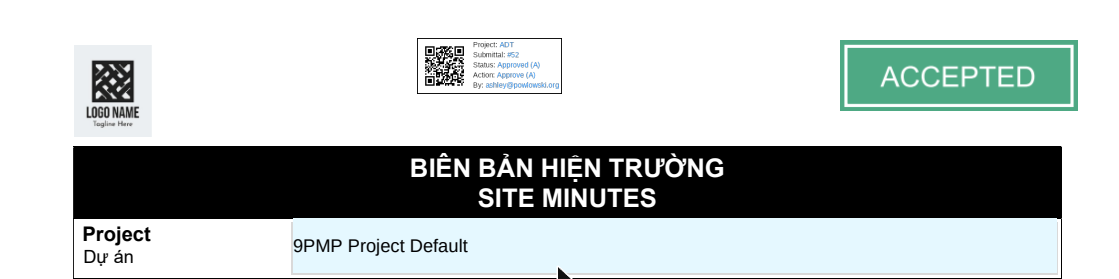
The stamp is a QR code with a short summary next to it:
| Line | Example |
|---|---|
| Project | ADT |
| Submittal | #52 |
| Status | Approved (A) |
| Action | Approve (A) |
| By | The email of the approver who recorded the action |
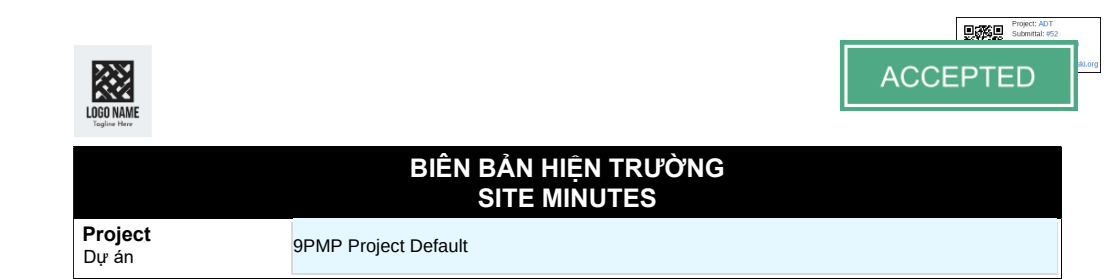
Default position: the top-right corner. If the PDF has no placement tag, the stamp goes in the top-right corner of the page. Anything already printed there stays, so the two can overlap. In the file below, the stamp lands behind the form's ACCEPTED box:
Custom position: the #aecisqr tag. To choose where the stamp goes, type the text #aecisqr in the PDF at that spot before you upload it. Upper or lower case both work (#AecisQR, #AECISQR…).
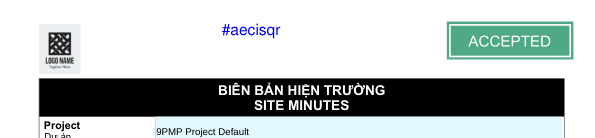
When the PDF is stamped, AECIS puts the stamp where the tag is, instead of the top-right corner, and the tag text disappears from the stamped copy:
- Put the tag in an empty area big enough for the stamp, such as the header next to the logo or a blank approval box on the form.
- Type the tag as real text in the drawing or form (from Word, Excel, CAD, or as a text box in a PDF editor). A tag inside a scanned image can't be read.
- Use the tag when the top-right corner of your template already holds a logo, a title block or a stamp of its own.
The stamped PDFs open as protected documents: the viewer shows This Document is Protected, and some editing features are turned off so the approved copy can't be changed.
Issue To
Route the submittal to third-party reviewers:
-
Click Issued To on the action bar.
-
Select one or more reviewers (required), enter Notes (required), and confirm.
-
The selected people join the 3 | Third Party Approver group and can record advisory Approve / Reject / For Info opinions — these never change the submittal's status. Only the Assignee's disposition does.
The action is written to the Activity timeline with the note, the people it was issued to and the attachments. A Dear … greeting at the start of the note is sent in the email only, so it does not appear here:
3 | Third Party Approver
Everyone the Assignee routes the submittal to with Issue To belongs to this group; their names are listed under Issue To in the properties. The bottom action bar then starts with 3 | THIRD PARTY APPROVER, and the More menu lists the group's actions: Approve (A/B), Reject (C), For Info (D) and Reassign.
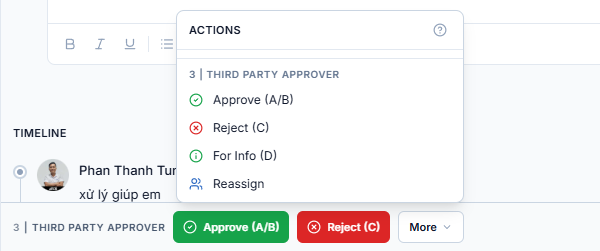
The dialogs are the same as the Approver's, without Stamp QR. The actions are advisory: they are written to the timeline and emailed to the distribution list, but the submittal keeps its status. Only the Assignee's disposition (Approve A/B, Reject C, For Info D) changes it.
Reassign — one variant per group
Three different "reassign" actions exist, one per role:
| Action | Group | What it does |
|---|---|---|
| Reassign Creator | 1 | Creator | Hands the submittal to a new creator |
| Reassign Coordinator | 2 | Approver | Hands the review to a new assignee |
| Reassign | 3 | Third Party Approver | Hands the review over to another reviewer |
Cancel
Either the Creator or the Assignee can Cancel a submittal in any open status: Submitted, Re-Submitted, In-Progress, Rejected (C), Approved (A/B) or For Info (D). A cancel reason is required. Cancelled is a terminal status.
Take Creator / Take Approver
If you are not involved in a submittal at all, these actions let you claim the Creator or Assignee role (subject to your project permissions). They are the only two actions you see, and the More menu still lists them one per group — Take Creator under 1 | Creator, Take Approver under 2 | Approver.
Each opens a one-step confirmation naming whoever holds the role today. Nothing changes until you confirm:
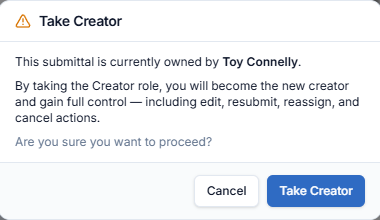
Taking the Creator role gives you full control of the record — edit, resubmit, reassign and cancel.
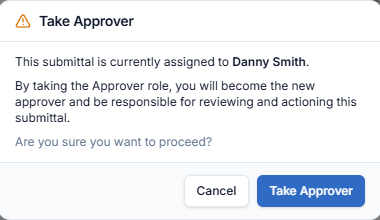
Taking the Approver role makes you responsible for reviewing and actioning the submittal, and on a Submitted / Re-Submitted item it also triggers the automatic move to In-Progress.