Filter & Search
Prerequisites: none — all project members can filter and search the submittals they are allowed to see.
Quick search
Type in the search box at the top of the list to filter by:
- Submittal ID
- Submittal name
- Reference number
The "Mine" toggle
Click Mine to narrow the list to submittals where you are directly involved.
The "Overdue" toggle
Click Overdue to show only submittals past their Expected Close Date that are still awaiting resolution.
Detailed filter
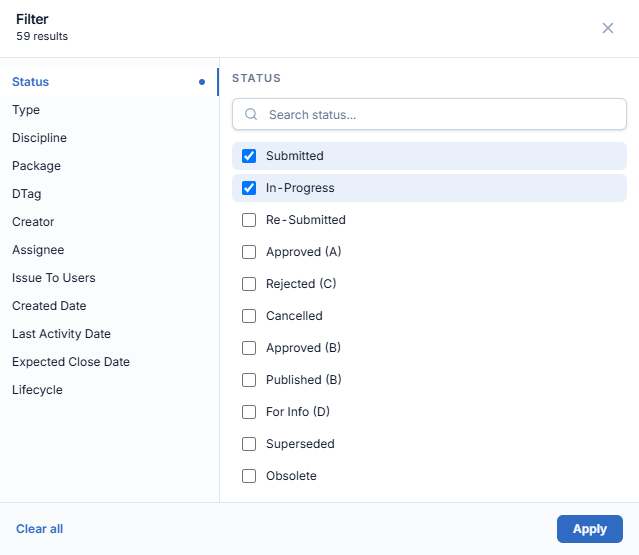
- Click the Filter button. A filter panel slides in from the right.
- Combine any of these conditions (they apply together — AND logic):
- Status
- Type
- Discipline
- Package
- DTag
- Creator
- Assignee
- Issue To Users
- Created-date range
- Last-activity-date range
- Expected-close-date range
- Inactive
- Lifecycle (Inactive / Active / Closed)
- The matching result count updates instantly.
- Use Clear all to reset, Apply to run the filter.
Saved custom filters
Build a filter from several conditions, name it, and keep it as a preset in the toolbar:
-
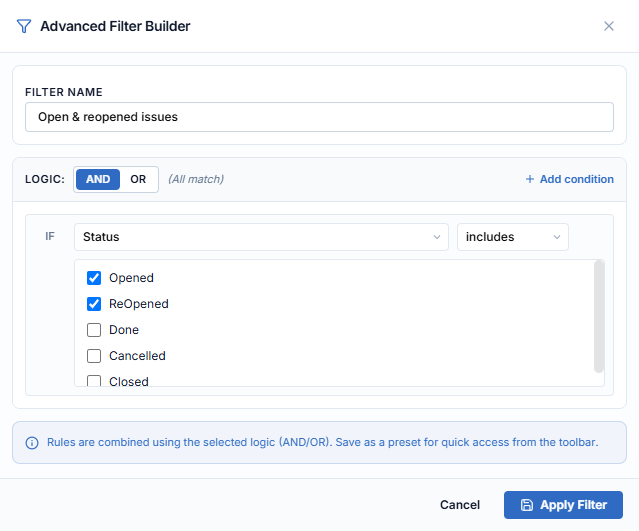
Click Custom views in the toolbar, then + New custom filter. The Advanced Filter Builder panel opens.
-
Type a Filter name.
-
Pick the Logic: AND (all conditions must match) or OR (any condition matches).
-
Set the first condition — a field (e.g. Status), an operator (e.g. includes) and the values. Click + Add condition for more.
-
Click Apply Filter.
The filter is applied at once and saved under Saved filters in the Custom views dropdown. The button shows the active preset's name, and Clear all filters removes it.
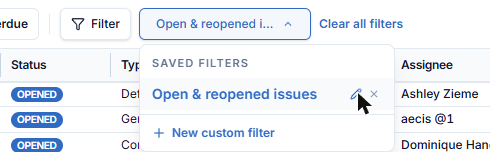
Hover a saved filter to edit it (pencil) or delete it (×).