Managing Packages
Create a package
-
Click + New in the toolbar. The New Package panel slides in from the right.
-
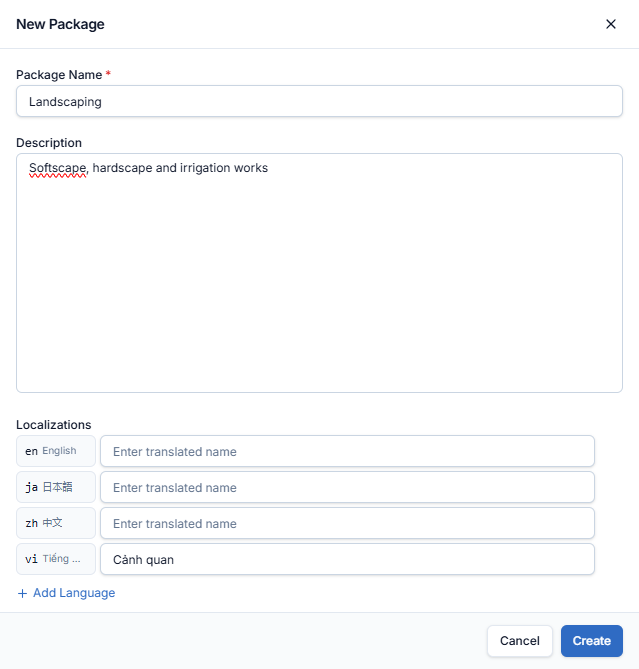
Fill in:
- Package Name (required) — e.g. Landscaping.
- Description (optional) — a brief scope description.
- Localizations (optional) — the package name in other languages. Rows for English, 日本語, 中文 and Tiếng Việt are ready; click + Add Language for more.
-
Click Create. A toast confirms "Package created" and the package appears in the list.
Edit a package
Hover the package's row and click the pencil. The Edit Package panel has the same fields as above. Click Save Changes.
Archive a package
-
Hover the package's row and click the trash icon.
-
Confirm in the Archive Package dialog: "Are you sure you want to archive …?"

An archived package is hidden from the list and no longer offered for new records. Records already assigned to it keep it.
Restore an archived package
-
Click Show archived in the toolbar. Archived packages appear in the list with their names struck through.

-
Hover the archived package's row and click the restore icon.
Click Show archived again to hide archived packages.