Workflow Actions
Mobile runs the same review cycle as the web, with the same three actor groups — the Creator, the Assignee (coordinating reviewer), and optional Third-Party Approvers — and the same actions: Approve (A/B), Reject (C), For Info (D), Issued To, the three Reassign variants, Cancel, Resubmit, Resubmit & Supersede, and Take Creator / Take Approver.
The only actions missing on mobile are the ones tied to creating a record: Create, Edit and Delete are web-only. See Web ↔ Mobile Differences.
The Actions sheet
Open the ⋯ menu in the title bar of the detail screen. Where the web has a bottom action bar plus a More menu, mobile puts everything in one sheet.
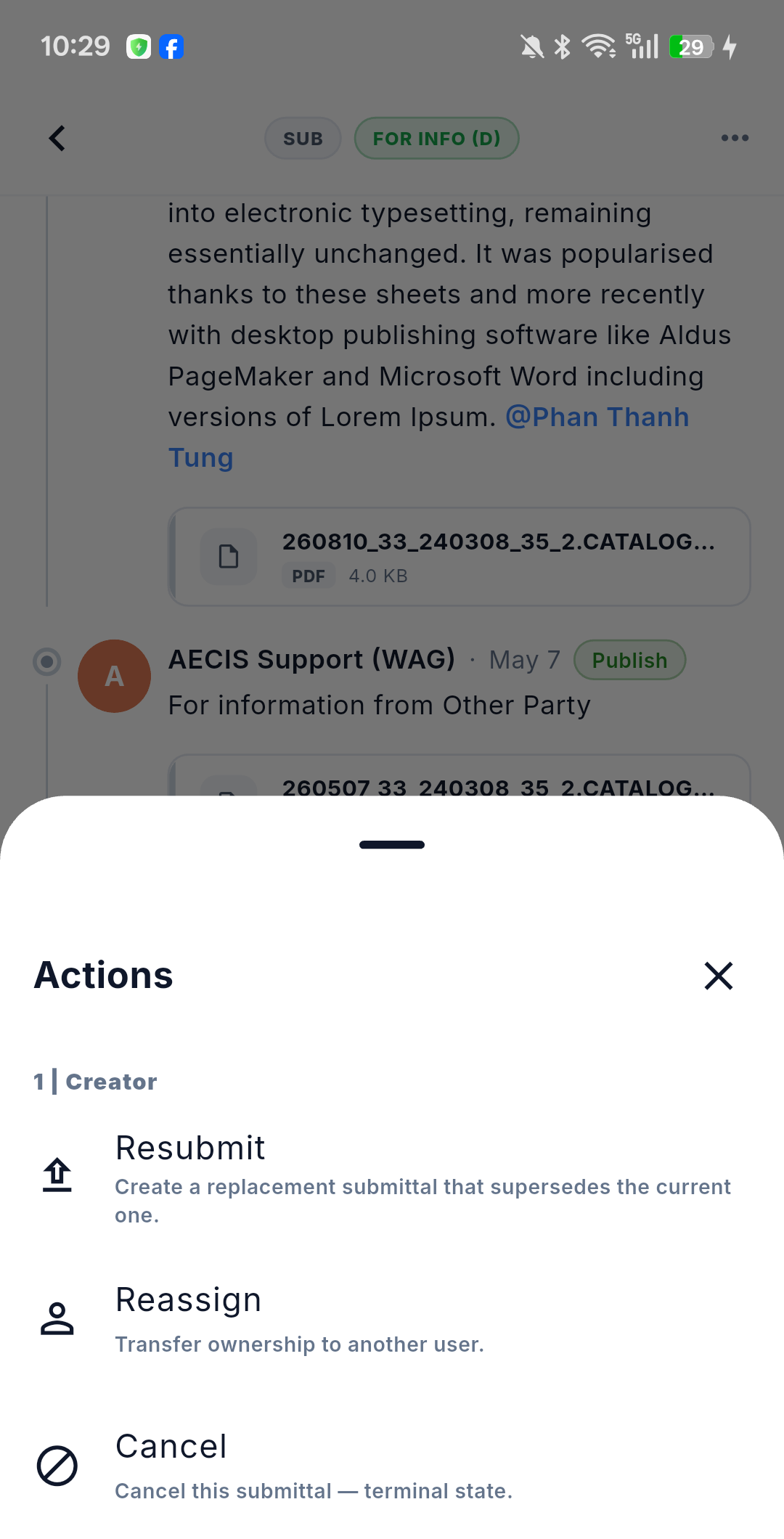
Actions are grouped by actor role, each group numbered and labelled exactly as the app writes it — 1 | Creator, 2 | Approver, 3 | Third Party — and only the groups that apply to you are shown. Every action carries a one-line description, so the sheet explains itself.
The list is decided by the system from your role, the submittal's status and who holds the ball-in-court — exactly as on web. The app never guesses.
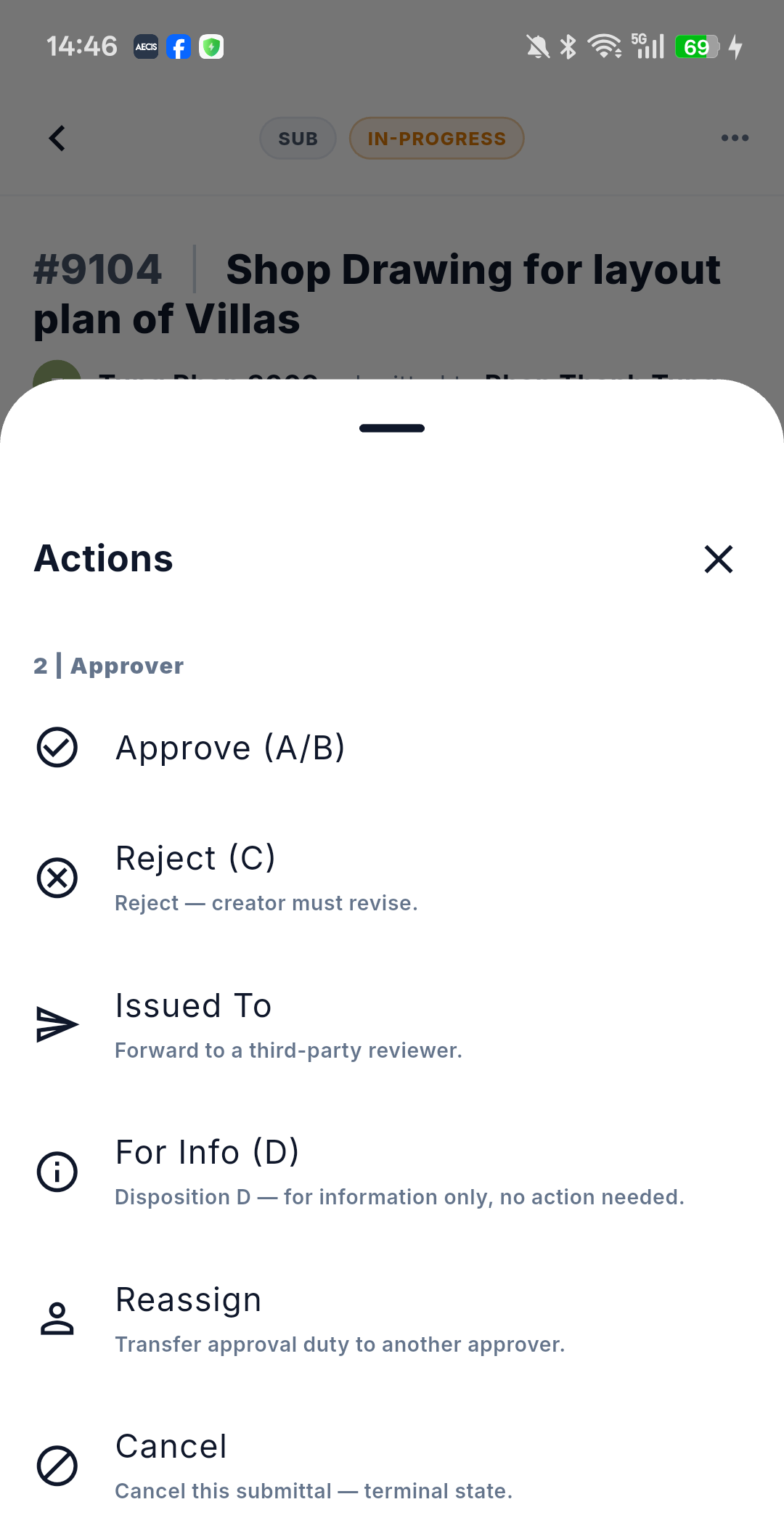
Only the groups you hold are listed, and when you hold more than one they all appear. Below is the sheet on an In-Progress submittal opened by its Assignee — the 2 | Approver group, with the six actions it carries:
Who can do what
The permission table is the same as on web, minus the Draft row and the Edit / Delete actions, which do not exist on mobile:
| Status | 1 | Creator | 2 | Approver | 3 | Third Party |
|---|---|---|---|
| Submitted / Re-Submitted | Reassign, Cancel | Approve (A/B), Reject (C), Issued To, For Info (D), Reassign, Cancel | — |
| In-Progress | Reassign, Cancel | Approve (A/B), Reject (C), Issued To, For Info (D), Reassign, Cancel | Approve (A/B), Reject (C), For Info (D), Reassign |
| Rejected (C) | Resubmit, Reassign, Cancel | (same as In-Progress) | (same as In-Progress) |
| Approved (A/B) / For Info (D) | Resubmit, Reassign, Cancel | (same as In-Progress) | (same as In-Progress) |
| Cancelled / Superseded | none | none | none |
Administrators can act as any group. Users in no group see only Take Creator / Take Approver.
Both screenshots above line up with this table: the first is a For Info (D) submittal opened by its Creator, showing the three 1 | Creator actions of the fourth row; the second is an In-Progress submittal opened by its Assignee, showing the six 2 | Approver actions of the second row.
The table above uses the labels the app puts in the sheet. Where the web says Reassign Creator, Reassign Coordinator and Delegate Review, the sheet says Reassign in all three cases — the group tells you which one it is. Resubmit & Supersede likewise appears as Resubmit.
1 | Creator
The submitting side's group. Besides the action below it also holds Reassign and Cancel, both described further down.
Resubmit and Resubmit & Supersede
Which of the two you get depends on the status, and the outcome is different:
| Situation | Action | Result |
|---|---|---|
| Rejected (C) | Resubmit | The same record is resubmitted, moving to Re-Submitted, and the documents' major version steps up — for example 0.0 to 1.0 |
| Approved (A/B) or For Info (D) | Resubmit & Supersede | A new linked record is created and the original becomes Superseded |
On mobile both open a full-screen form. The supersede form is pre-filled from the original:
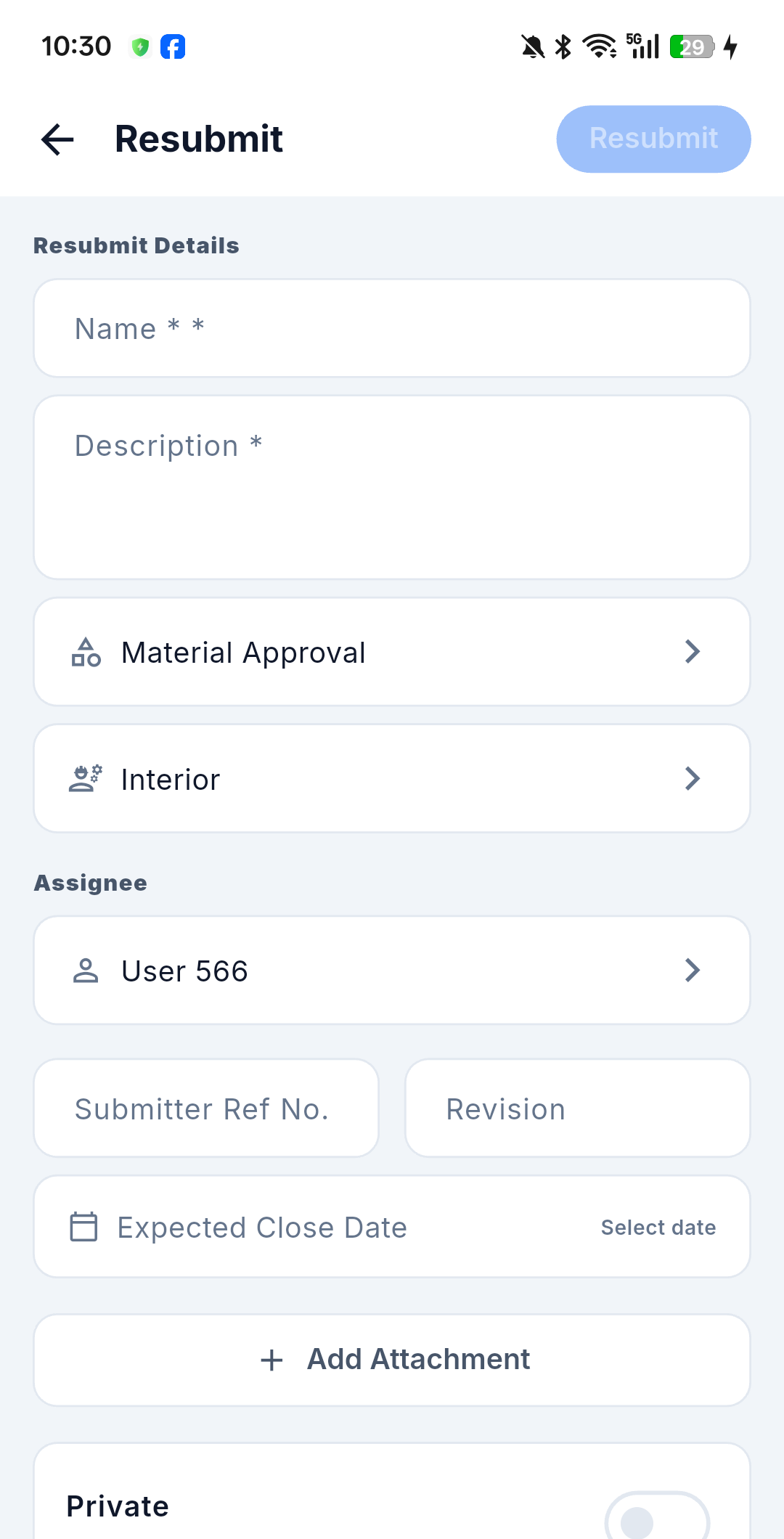
| Field | Required | Notes |
|---|---|---|
| Name | Yes | |
| Description | Yes | Multiline |
| Type | Yes | Pre-filled — for example Material Approval |
| Discipline | Yes | Pre-filled — for example Interior |
| Assignee | Yes | The ball-in-court for the new submittal; change it with the picker |
| Submitter Ref No. | No | |
| Revision | No | |
| Expected Close Date | No | Select date |
| Attachments | No | + Add Attachment |
The confirm button in the top right stays disabled until the required fields are filled.
The supersede behaviours are the same as on web: the new submittal's document version restarts from 0.0, the two records stay linked in the revision chain, only unstamped documents move to the new record, and the old record is blocked from further actions the moment Supersede fires.
2 | Approver
The coordinating reviewer's group — the only one whose actions change the submittal's status.
Approve (A/B)
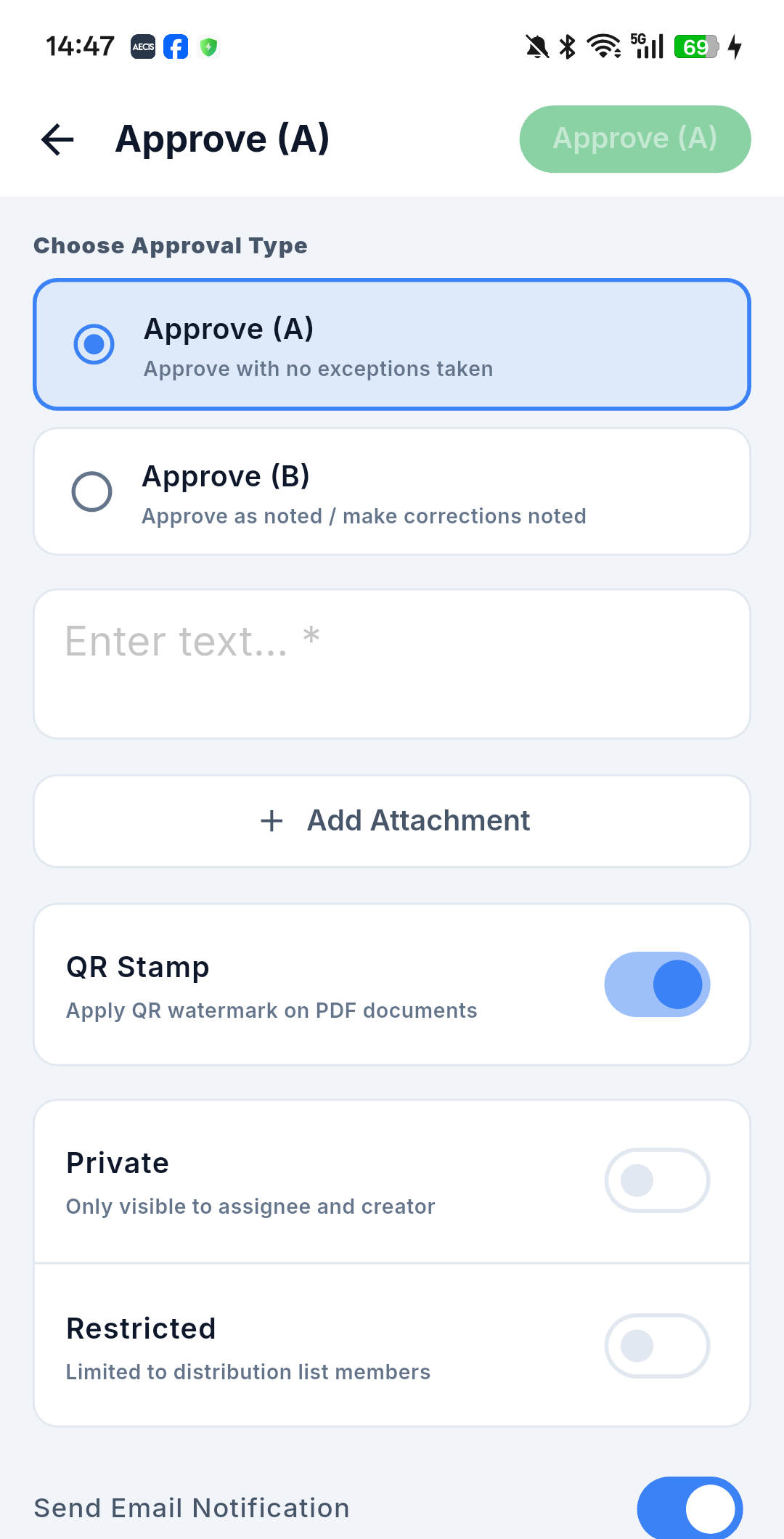
- Open the submittal, open the ⋯ menu and choose Approve (A/B).
- Under Choose Approval Type, pick one:
- Approve (A) — Approve with no exceptions taken
- Approve (B) — Approve as noted / make corrections noted
- Enter the Note (required) and attach files if needed.
- Check the QR Stamp switch — Apply QR watermark on PDF documents. It is on by default, so a QR review stamp is applied unless you turn it off.
- Review the Private / Restricted switches and the distribution list, then confirm. The status moves to Approved (A) or Approved (B).
QR Stamp — called Stamp QR on web — appears only on the Approve and For Info forms. It is the switch shown above, sitting between Add Attachment and the Private / Restricted block, and it starts enabled.
Reject (C)
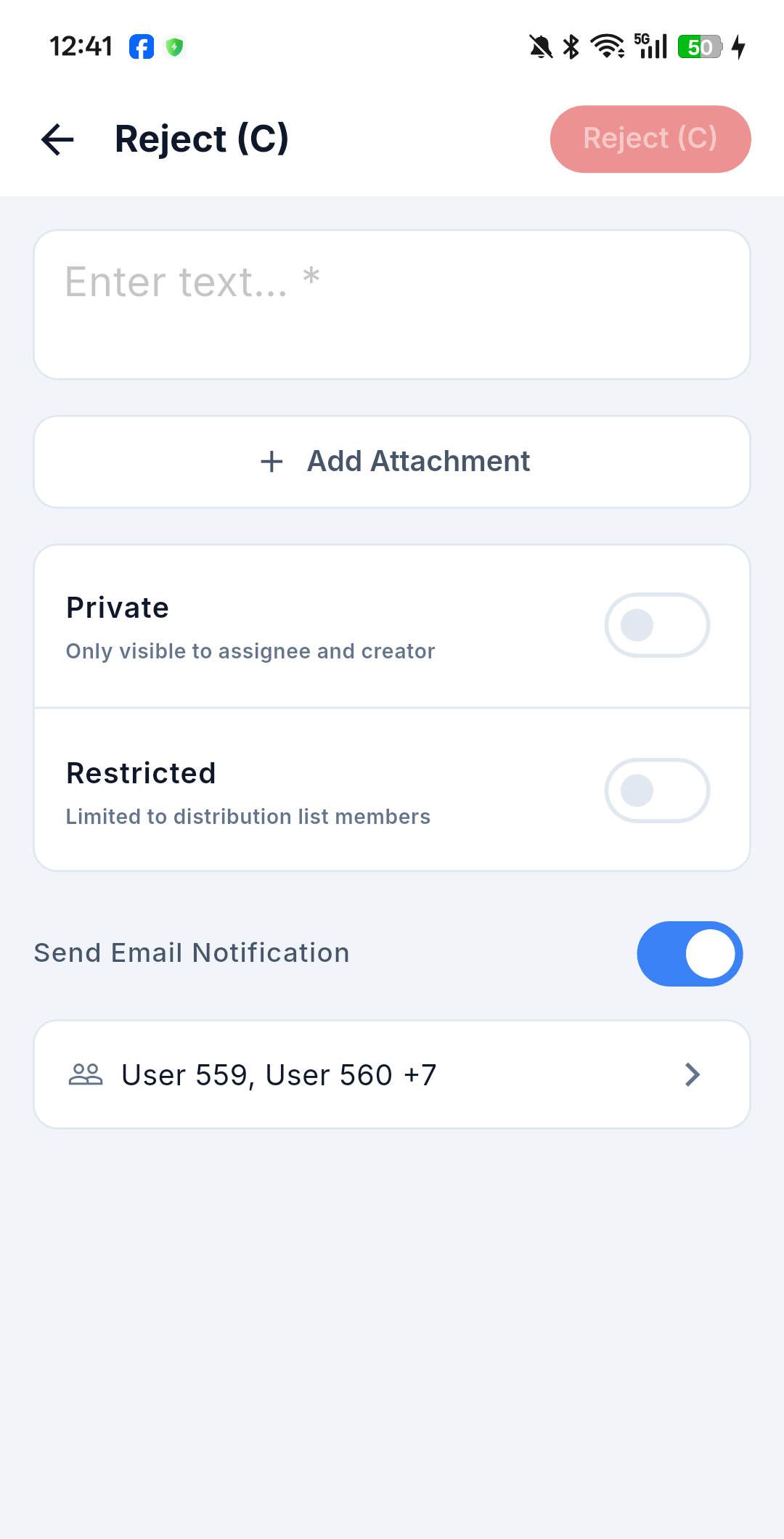
Choose Reject (C), enter the Note (required) explaining what must be corrected, and confirm with the red Reject (C) button. The status moves to Rejected (C), and the Creator can then resubmit.
The Reject form carries no QR Stamp switch — a rejection never stamps documents.
For Info (D)
Choose For Info (D) — Disposition D — for information only, no action needed — enter the Note, leave or clear the QR Stamp switch, and confirm. The status moves to For Info (D).
Issued To
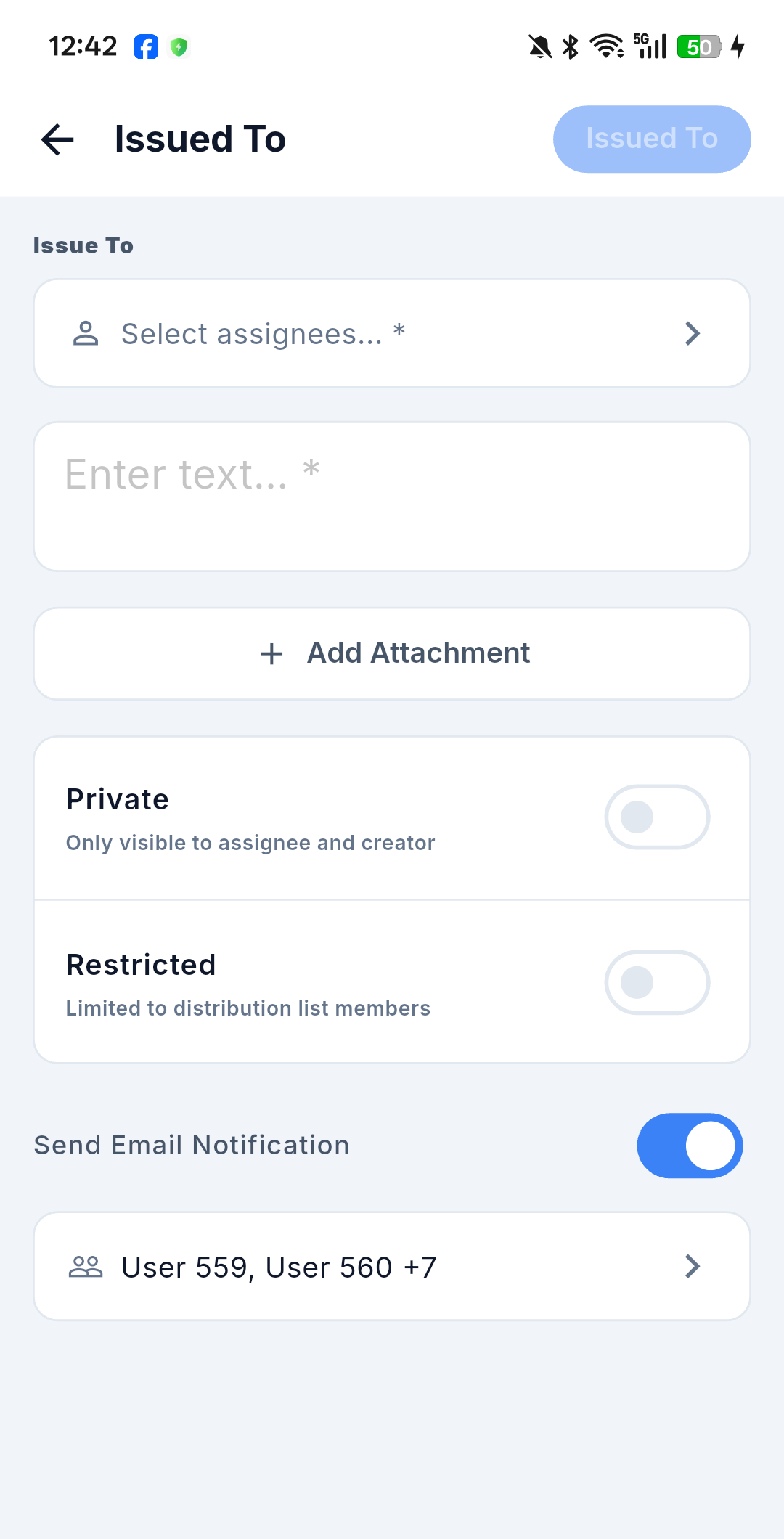
Route the submittal to third-party reviewers: choose Issued To, tap Select assignees… to pick one or more reviewers (required), enter the Note (required), and confirm.
The selected people join the Third Party group and can record advisory Approve / Reject / For Info opinions. As on web, these never change the submittal's status — only the Assignee's disposition does.
3 | Third Party
Everyone the Assignee routes the submittal to with Issued To belongs to the Third Party group — the reviewers named on the action, everyone currently on the Issue-To list, and anyone in the same stakeholder organisation as them. Their actions sit in the ⋯ menu under the group 3 | Third Party, next to any other group you hold.
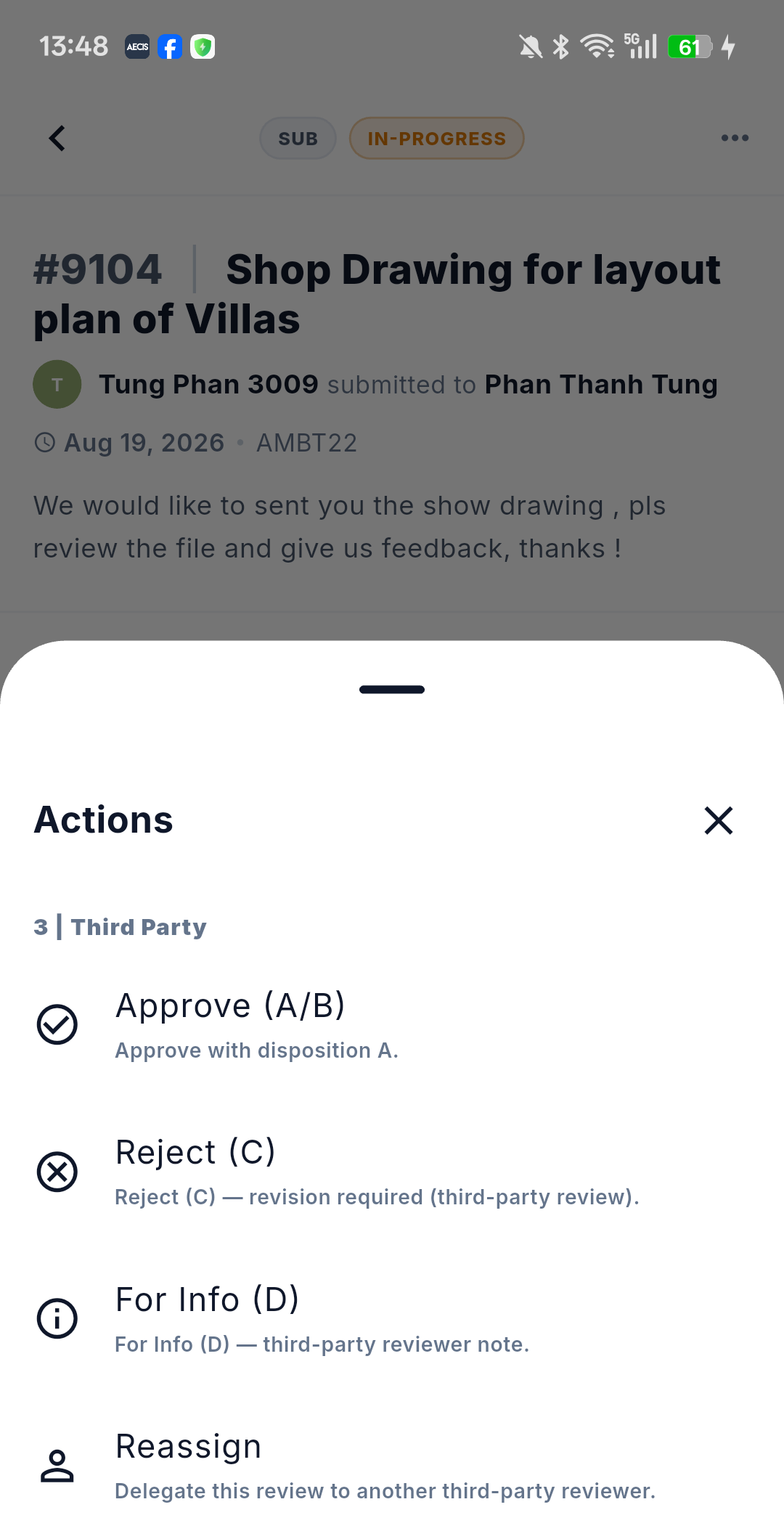
The group has four actions, and that is the whole of it — the sheet ends after the fourth:
| Action | What it does | Effect on status |
|---|---|---|
| Approve (A/B) | Records an advisory approval | None |
| Reject (C) | Records an advisory rejection | None |
| For Info (D) | Records an advisory for information opinion | None |
| Reassign | Delegates the review to another third-party reviewer — the web calls this Delegate Review | None |
All four are advisory. They are written to the timeline and emailed to the distribution list, but the submittal keeps the status it had — only the Assignee's disposition (Approve A/B, Reject C, For Info D) changes it. This is the same rule as on web.
The first three carry the same labels as the Approver group's actions. What marks them as the third-party versions is the description underneath — for example Reject (C) — revision required (third-party review) and For Info (D) — third-party reviewer note — so read the description, or check which numbered group you are looking at.
Availability follows the Who can do what table above: the group's actions appear once the submittal reaches In-Progress — that is, from the moment Issued To fires — and stay available while it is Rejected (C), Approved (A/B) or For Info (D). They disappear on Cancelled and Superseded.
The action forms
All four open a full-screen form built on the same shell as the assignee actions: the Note (required — the confirm button in the top right stays greyed out until you fill it), + Add Attachment, the Private and Restricted switches, Send Email Notification on by default, and the distribution row underneath.
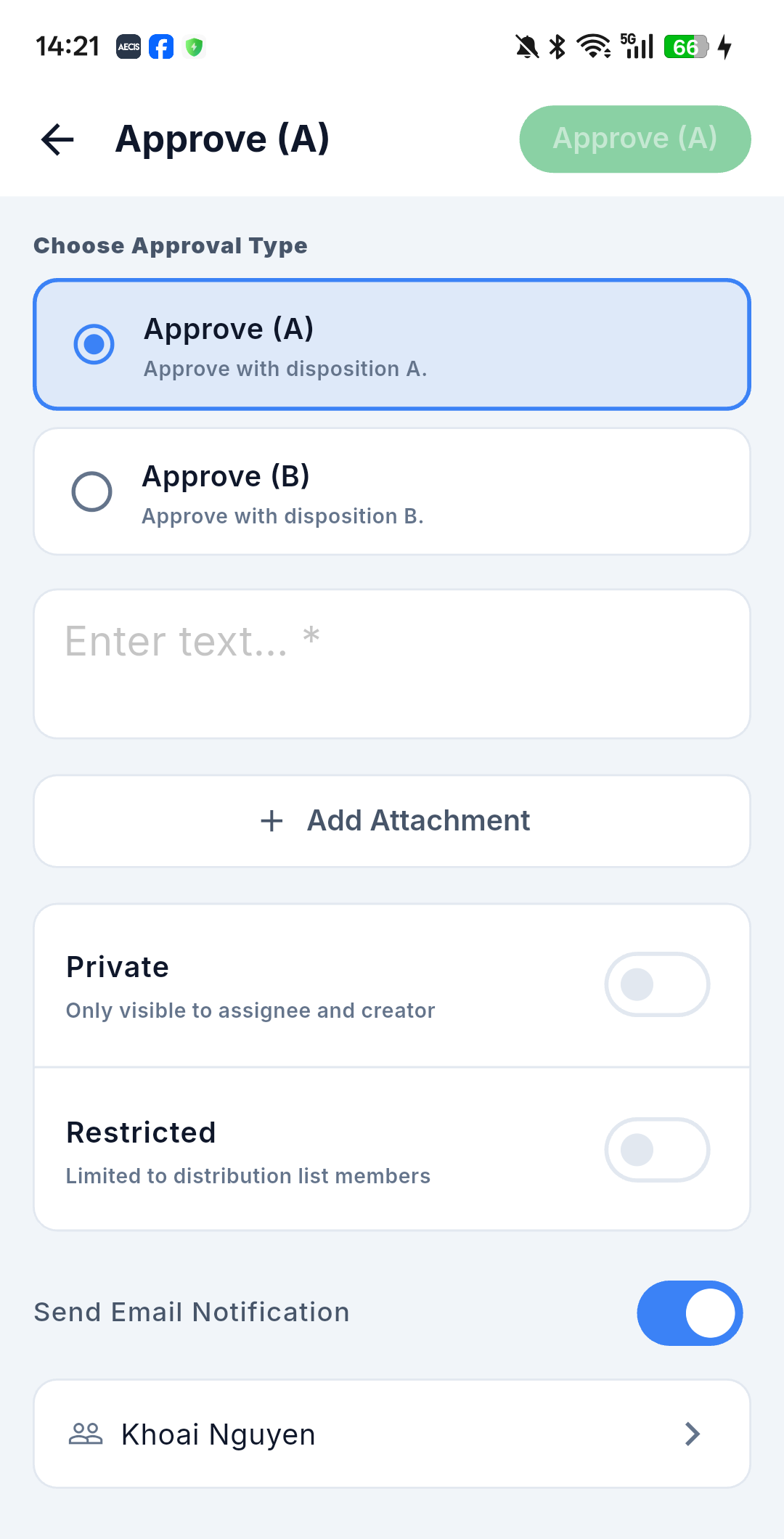
Approve (A/B) opens on Choose Approval Type, with Approve (A) — Approve with disposition A — already selected, and Approve (B) — Approve with disposition B — below it. Reject (C) and For Info (D) skip that block and start at the Note; the confirm button is coloured red on Reject.
None of these forms carries the QR Stamp switch. Stamping documents belongs to the Assignee's disposition — see 2 | Approver above.
Reassign is the only one with an extra required field. It opens with an Issue To block and Select assignees…, the same multi-select picker the Assignee uses for Issued To, so you can delegate to more than one reviewer at once:
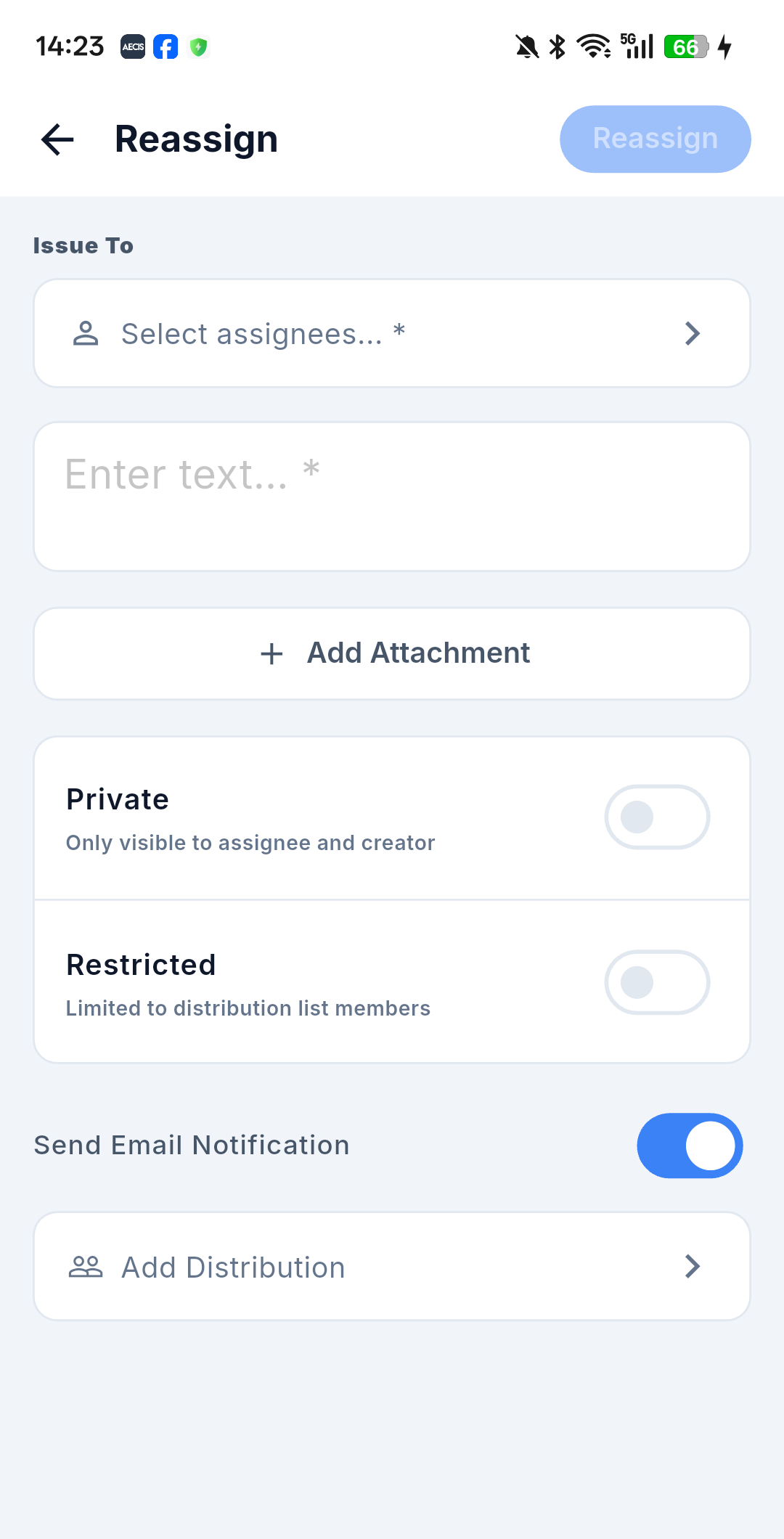
The distribution row starts pre-filled from the submittal on Approve and Reject, and starts empty — showing Add Distribution — on For Info and Reassign. Everything else behaves as described under Toggles and distribution below, and an opinion recorded with no signal queues like any other action.
Reassign — one variant per group
One per role, exactly as on web — and on mobile all three appear in the sheet as Reassign. What tells them apart is the group they sit under, plus their one-line description:
| Action | Group in the sheet | What it does |
|---|---|---|
| Reassign Creator | 1 | Creator | Hands the submittal to a new creator — Transfer ownership to another user |
| Reassign Coordinator | 2 | Approver | Hands the review to a new assignee — Transfer approval duty to another approver |
| Delegate Review | 3 | Third Party | Hands the review over to another reviewer |
Each needs a person (required) and a note. The Creator and Approver variants take one person — an Assignee block with Select assignee… — while the Third Party variant takes one or more, under an Issue To block:
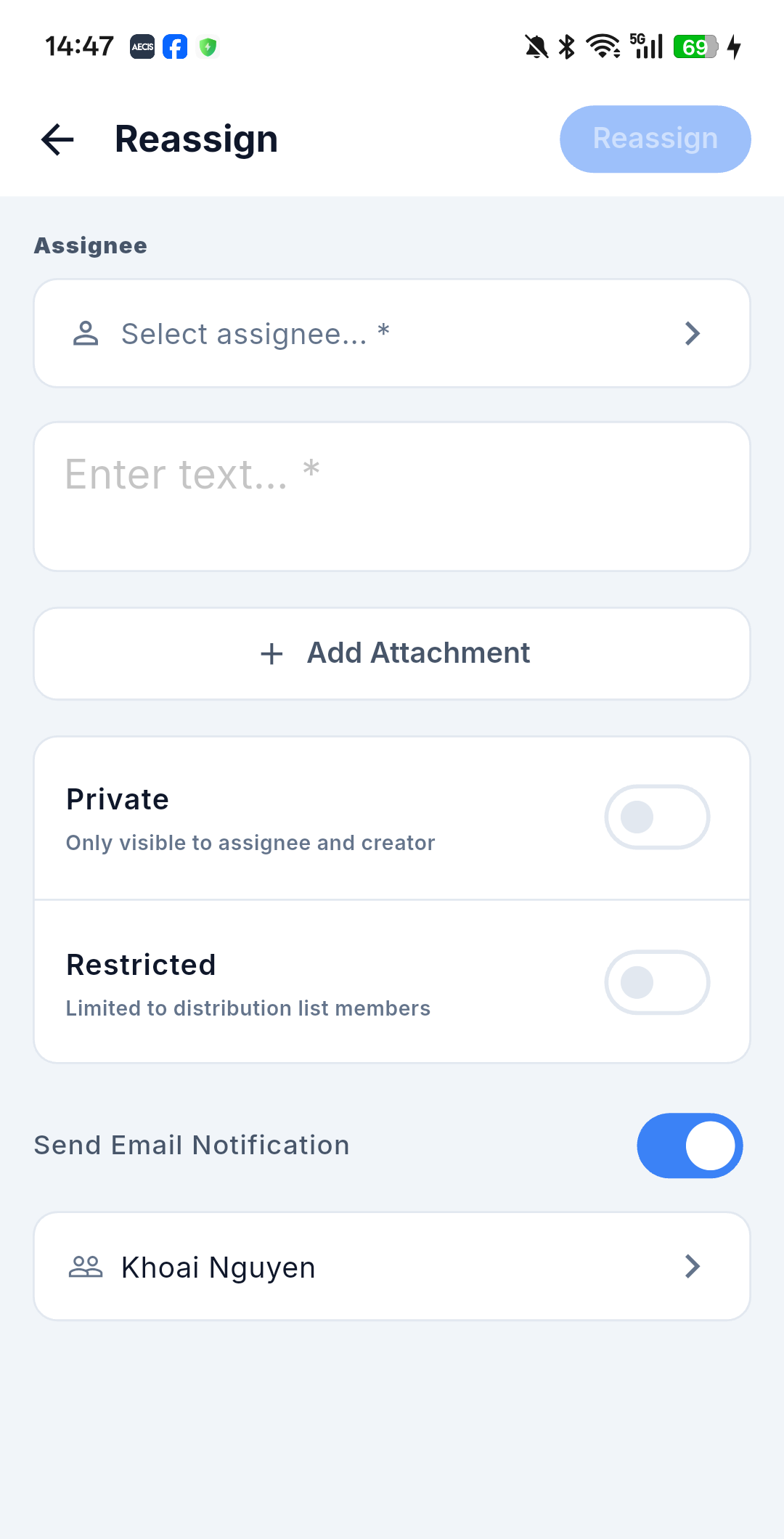
Cancel
Either the Creator or the Assignee can Cancel a submittal in any open status: Submitted, Re-Submitted, In-Progress, Rejected (C), Approved (A/B) or For Info (D). A cancel reason is required — the Note block is relabelled Reason. Cancelled is terminal, and the form hides both the Private and Restricted toggles.
Take Creator / Take Approver
If you are not involved in a submittal at all, these let you claim the Creator or Assignee role, subject to your project permissions. Take Approver on a Submitted or Re-Submitted item also triggers the automatic move to In-Progress.
Toggles and distribution
Every action form ends with the same block:
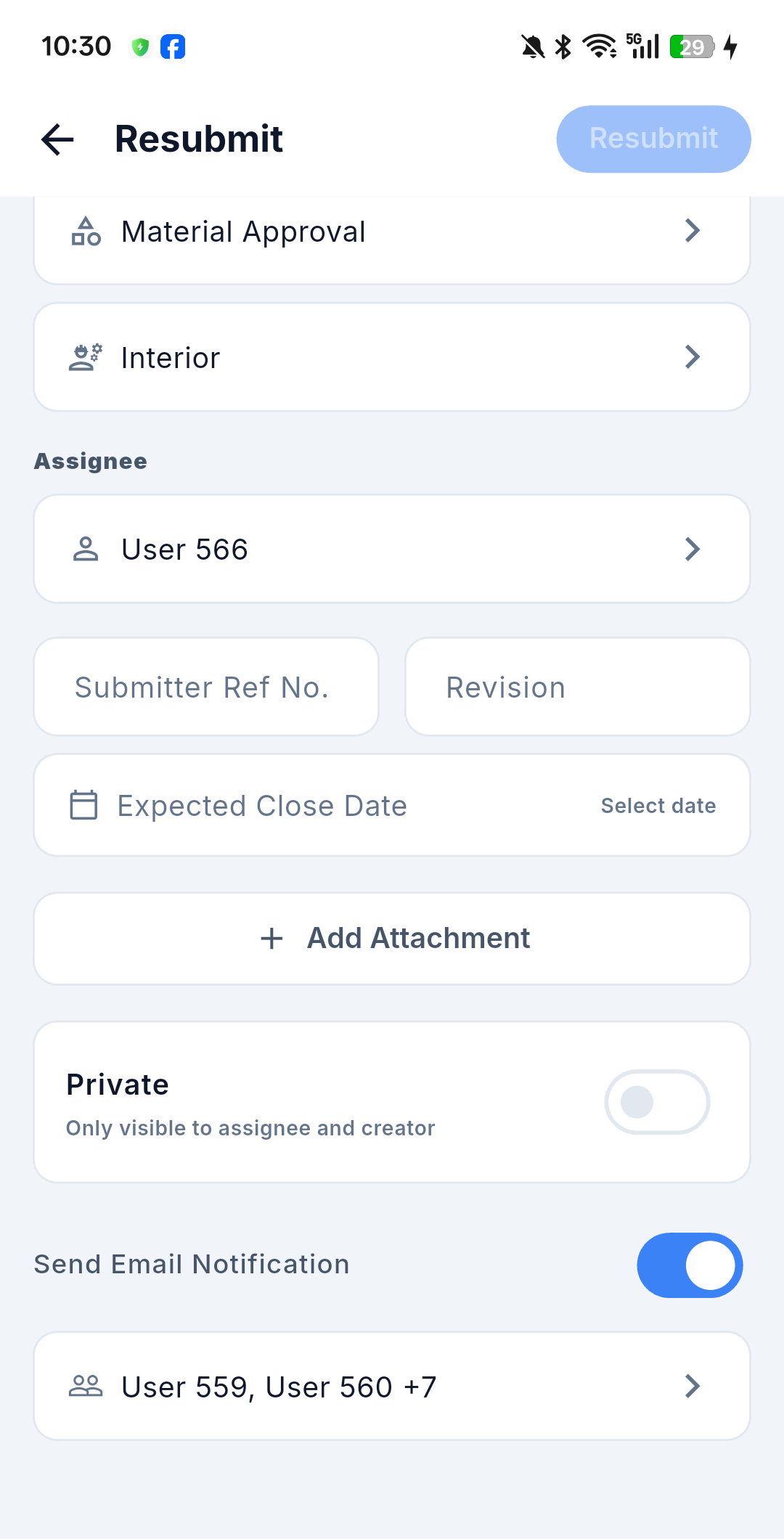
- 🔒 Private — "Only visible to assignee and creator", off by default. See Privacy.
- 🔒 Restricted — "Limited to distribution list members", off by default. Shown on the approval actions (Approve, Reject, Issued To, For Info) and hidden on Resubmit, Reupload and Reassign Creator, and on Cancel and Obsolete.
- 📧 Send Email Notification — on by default, with the distribution list underneath it (for example User 559, User 560 +7). Tap it to add or remove recipients. See Email Notifications.
Most actions also carry a Note — formatted text with @mentions, required for most actions and relabelled Reason on Cancel.
After you confirm
- A short confirmation appears and the detail screen refreshes itself to pick up the new status.
- If QR Stamp was on, a result sheet lists the documents that were stamped.
- If the action was Resubmit & Supersede, the app takes you to the new submittal it created.
Actioning offline
Actions taken with no signal are queued, not applied. The form closes as though you had submitted it, but the submittal's status does not change on your device — mobile deliberately shows no optimistic result. The queued action appears only as a banner until it syncs.
If your action attaches documents and you are offline, it is blocked with a message asking you to connect — document uploads cannot wait in the queue. Actions without attachments queue normally.
The full behaviour, including the failed and conflict states, is described in Working Offline & Sync.
Not on mobile
Create, Edit and Delete are web-only — a submittal is never created or edited from the phone, and drafts do not appear at all.
The Acknowledge action is not on mobile either.