The Detail Screen
Tapping a card opens the submittal full screen — mobile has no side panel.
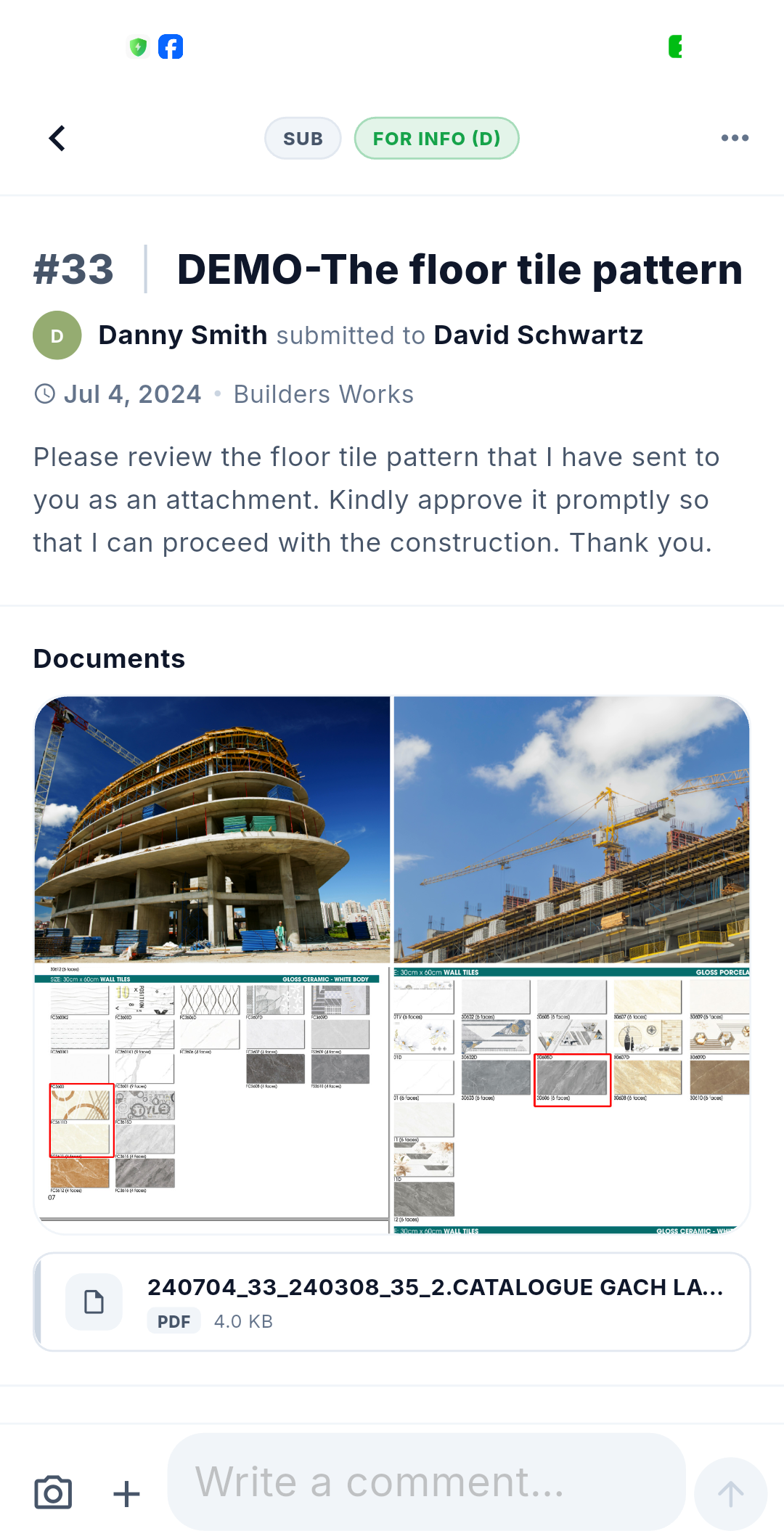
Layout
- Fixed title bar — a Back button, a record-type chip (SUB), the status chip (for example FOR INFO (D)), and the ⋯ menu holding the approval actions.
- Number and title — for example #33 · DEMO-The floor tile pattern.
- Summary line — who submitted it and to whom, in the form "Danny Smith submitted to David Schwartz", followed by the date and the package.
- Description.
- Documents block — the documents submitted with the submittal: images as a grid, files as tiles showing type and size.
- Properties block — the submittal's fields, such as Type: Shop Drawing.
- DTag chips — read-only, name only.
- Timeline — Activity, Comments and Email in a single merged stream.
- Fixed comment composer pinned to the bottom, with a camera button, an attachment button and a send button.
The timeline
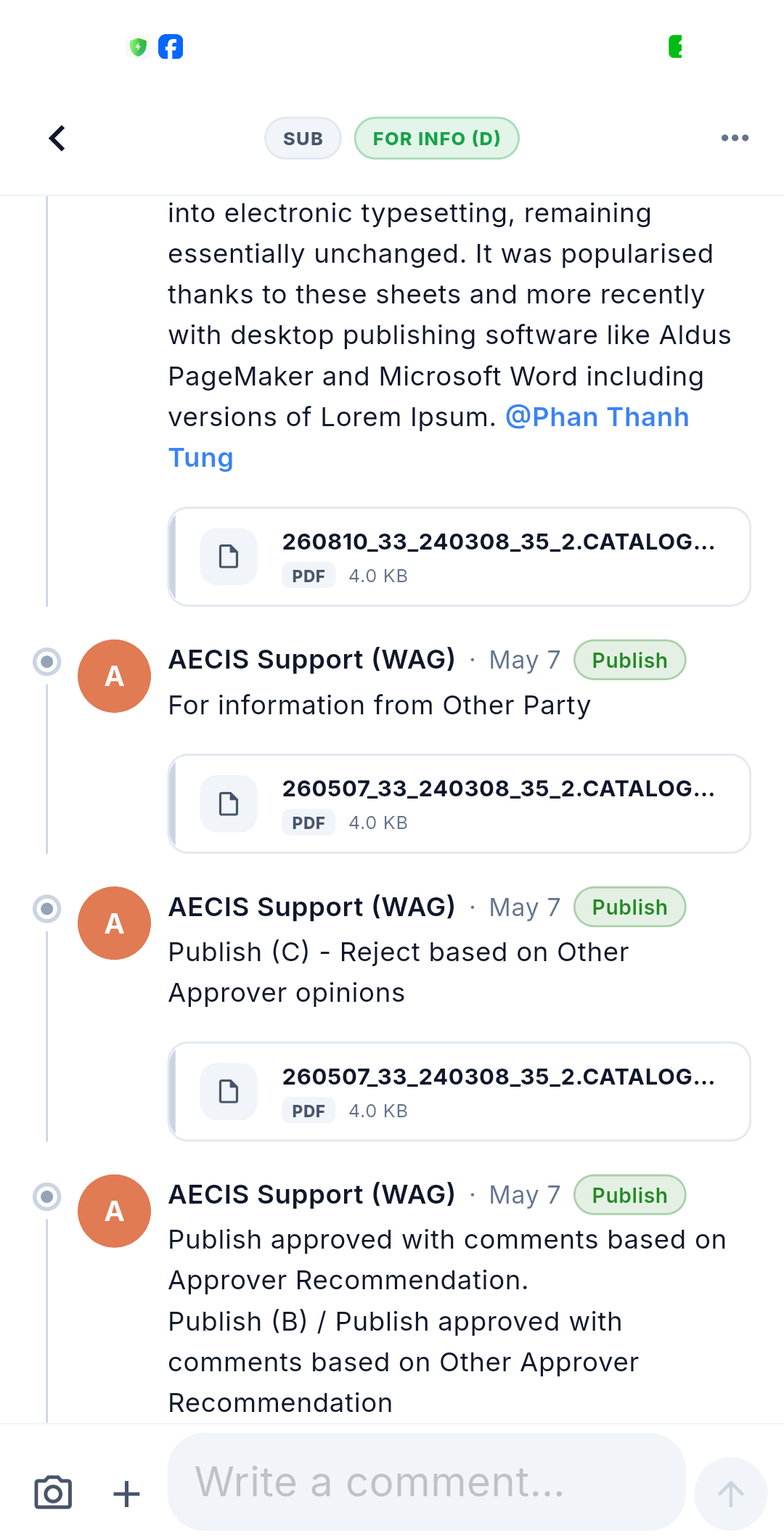
Each entry shows the actor's avatar, their name and stakeholder abbreviation, the date, and a colour-coded action label such as Publish. Notes appear underneath, along with any documents that action carried.
Revisions, Reviewers / Ball-in-court, Distribution, History and Items are not shown on the mobile detail screen. Distribution can still be edited inside each action form.
Comments & activity
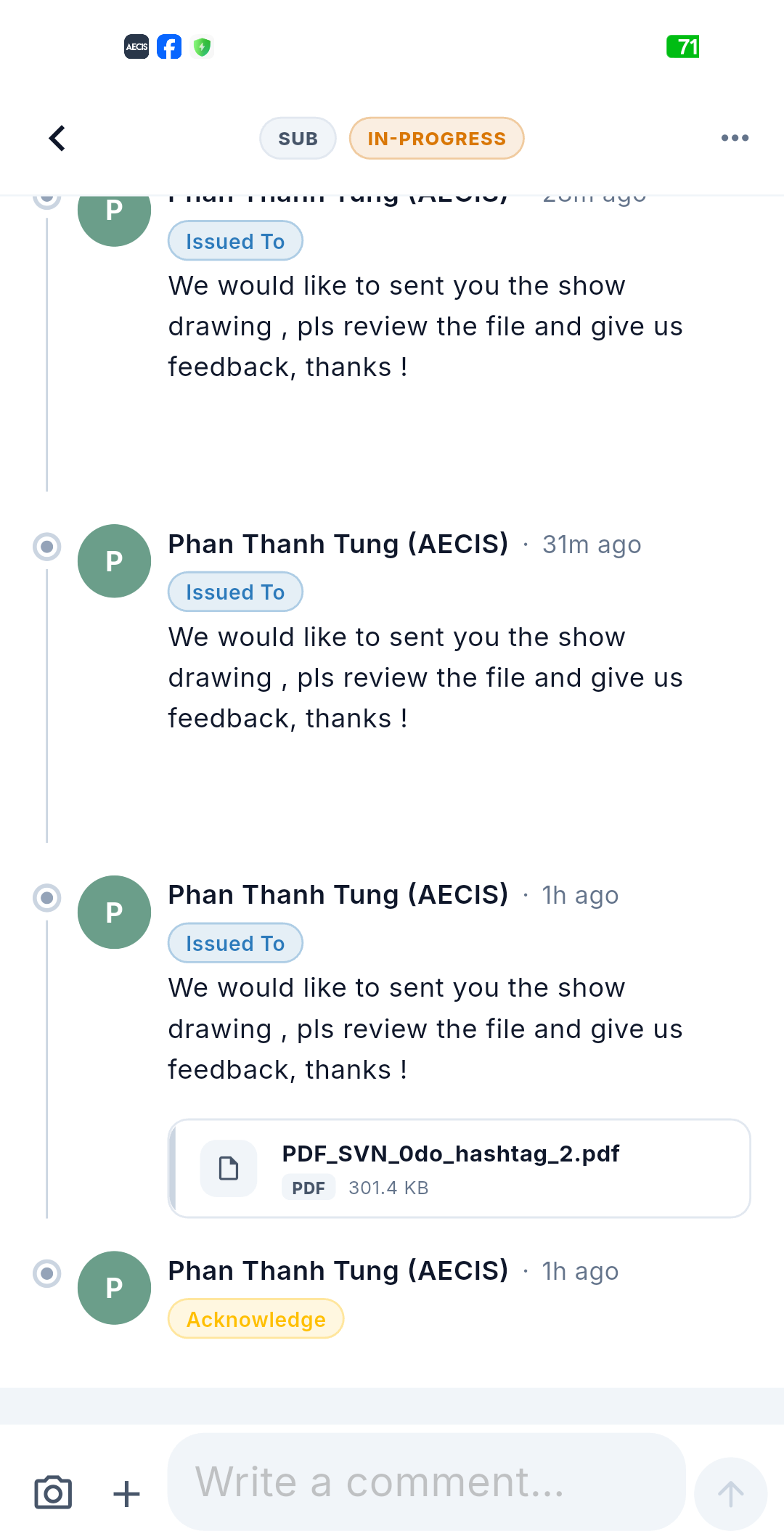
Workflow actions and comments share one stream. Each activity entry carries a colour-coded action chip — Issued To in blue, Acknowledge in amber — with the note underneath and any document that action brought with it:
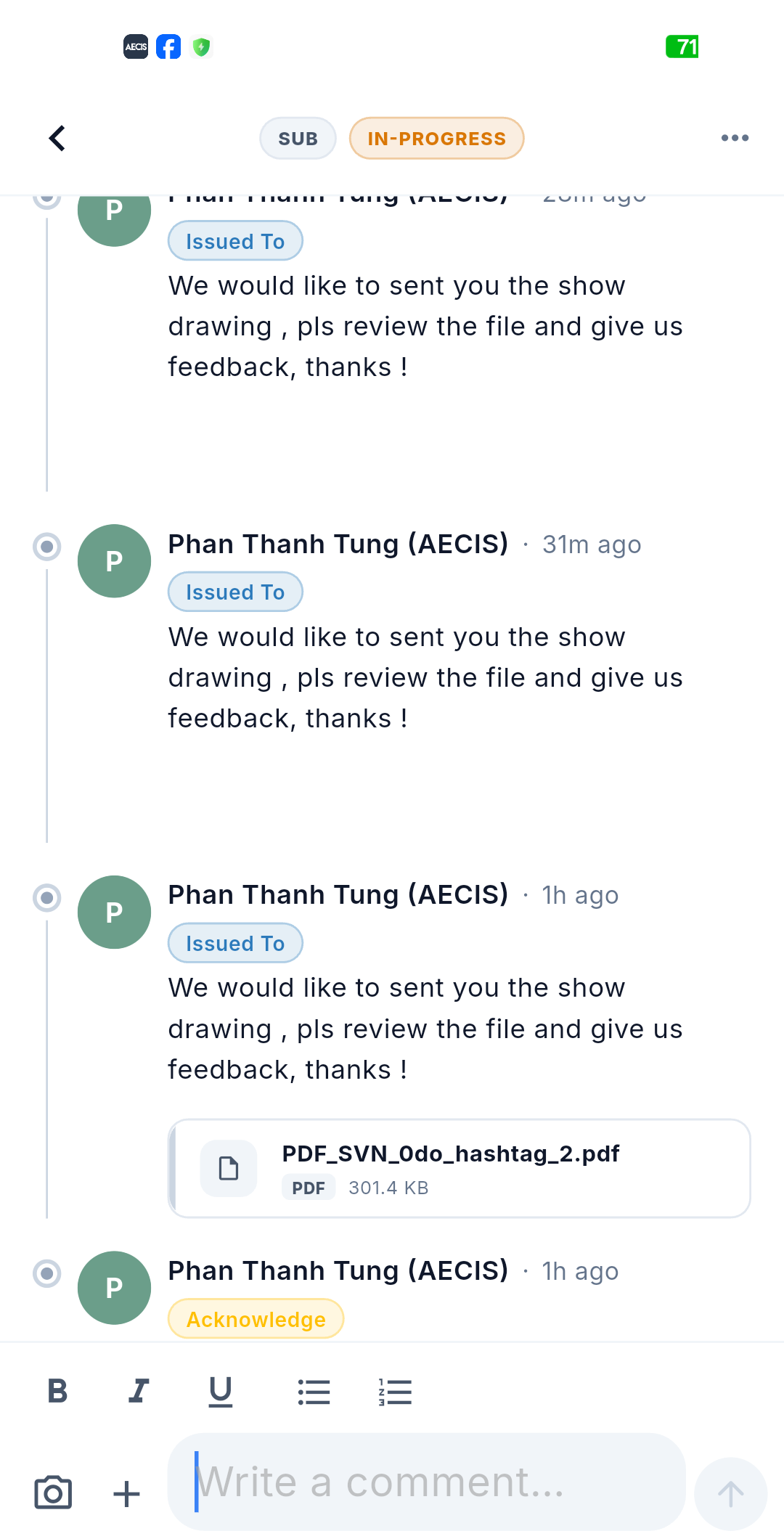
Tap the composer at the bottom and a formatting toolbar appears above it — bold, italic, underline, bulleted and numbered lists — alongside the camera and + attachment buttons:
The composer is a formatted-text editor with:
- @mentions from the user directory — they appear as blue links in the timeline.
- Reply to any comment — including one that has not synced yet.
- Edit / delete your own comments.
- File, photo and video attachments (these need a connection).
Comments appear instantly: a new comment shows up in the stream with a Queued label and syncs in the background. The system emails the distribution list for comments.
Email in the timeline
Emails sent about the submittal land in the same stream as activity and comments, so the correspondence sits in chronological order next to the actions it belongs to.
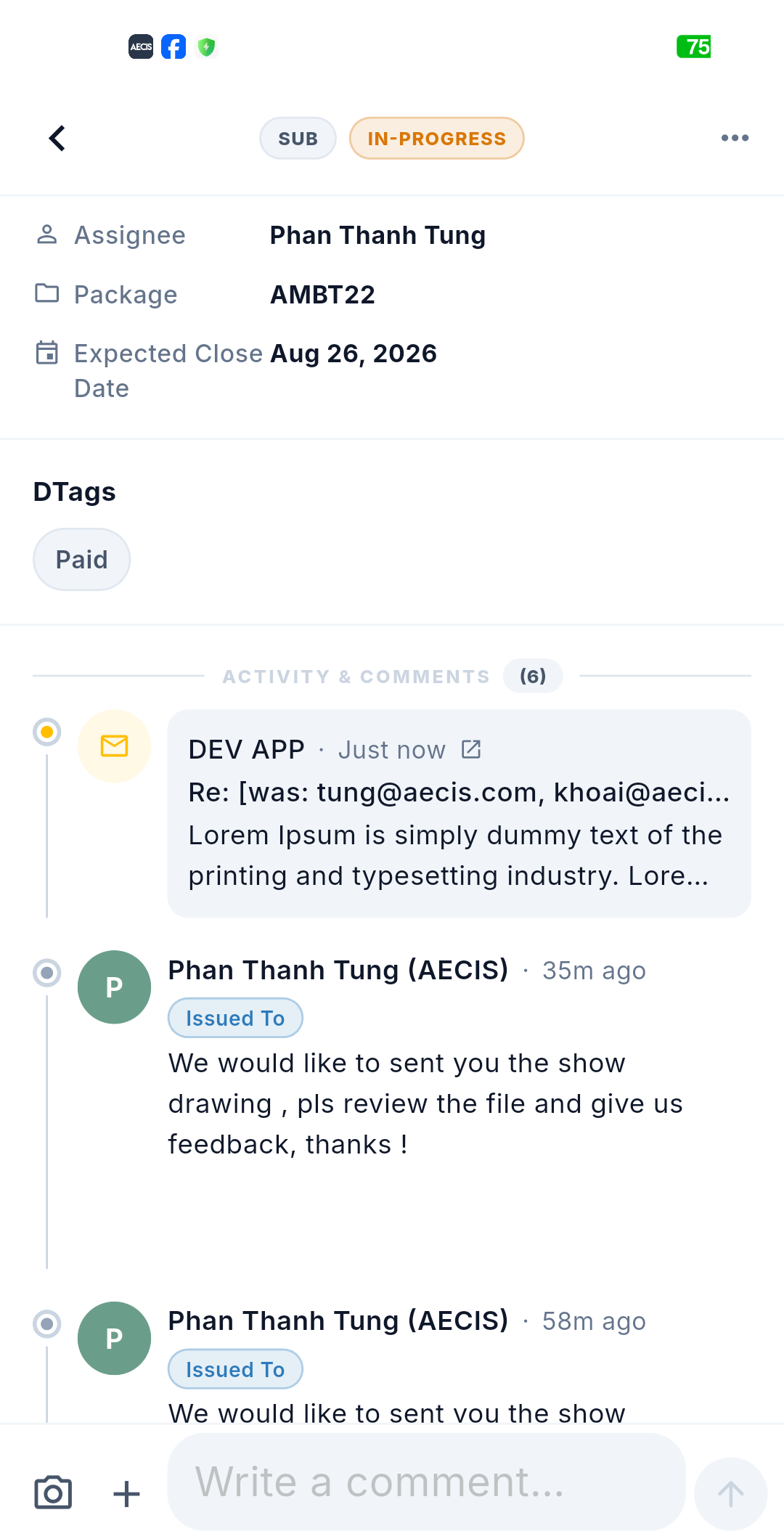
An email entry looks different from the other two on purpose:
- An envelope icon in an amber circle replaces the actor's avatar.
- The header carries the sender — for example DEV APP — the time, and an open-external icon for viewing the full message.
- Underneath sits the subject line, truncated when it is long — for example Re: [was: tung@aecis.com, khoai@aeci… — and then a preview of the body, cut off after a few lines.
The entry is a read-only record. Mobile does not compose or reply to email; you read the preview here, and open the message itself to see it in full. Emails are counted in the ACTIVITY & COMMENTS total at the top of the stream.
No inline editing on mobile
The detail screen is read-only. There is no Edit action on mobile — metadata is changed on the web. Everything else goes through the workflow actions.
The self-correcting screen
The screen watches your local queue and refreshes on its own. As queued items are sent, the Queued labels, the pending-action banner and the list of actions available to you update themselves without you reloading anything.