Submittal Module (Mobile) — Overview
The mobile Submittal module lets reviewers and submitters browse submittals, read their documents, comment, and run the full review workflow from the field — including while there is no signal.
It is the mobile counterpart of the web Submittal module and works on the same data, the same statuses and the same dispositions. A submittal is a document submitted for formal review and disposition — shop drawings, specifications, method statements, samples — tracked through a review cycle and a revision history.
Mobile shares its list, detail screen, comments, attachments and offline queue with the Issue module. What is specific to submittals is the review workflow: dispositions decided by the system from your role and the submittal's status, QR review stamps on approved documents, and Resubmit, which opens the next revision.
You will find it under Tools, alongside Issues, DMaps and Scan QR.
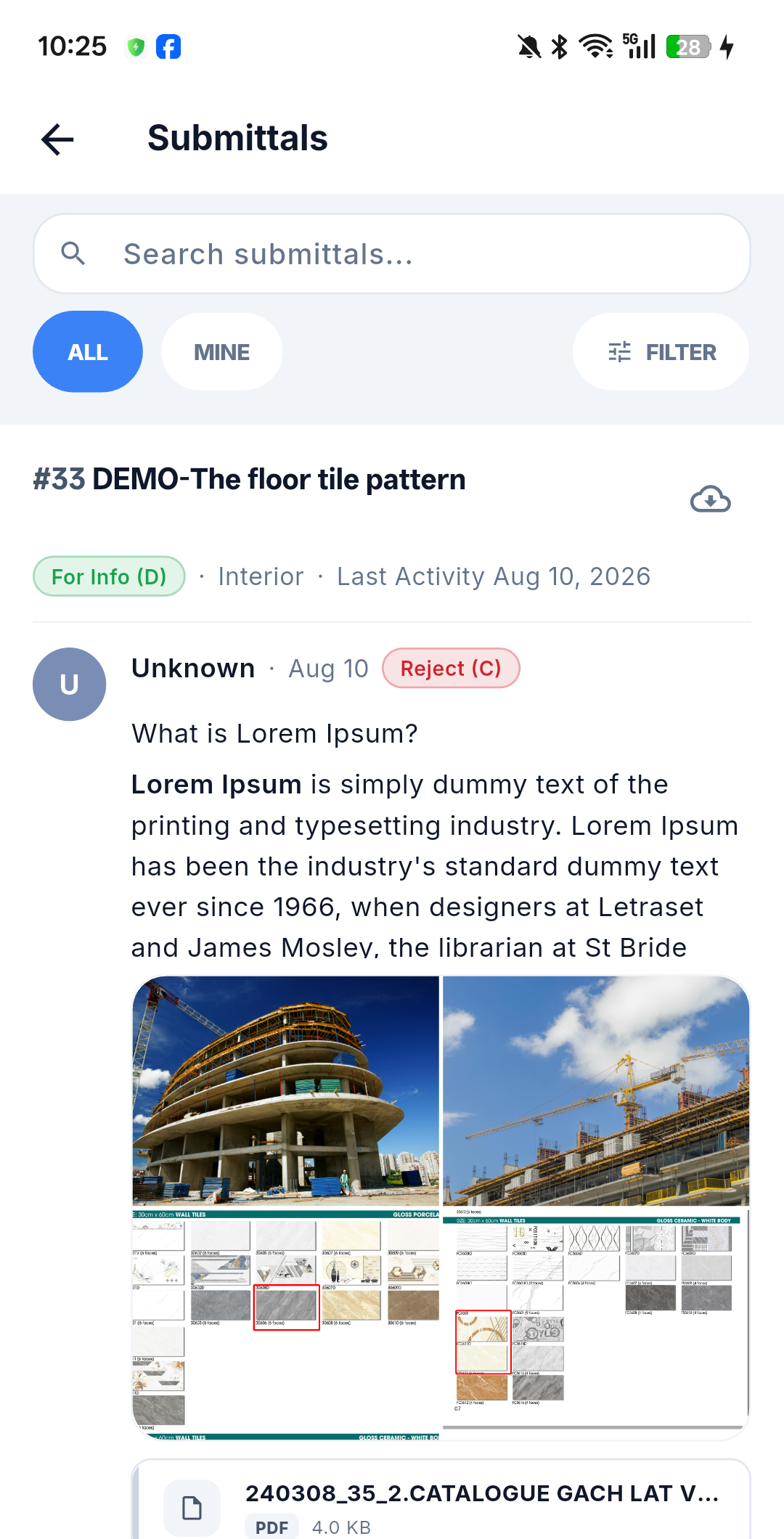
There is no Create Submittal screen in the mobile app, so a submittal never starts life on the phone. Submittals are created on the web; mobile is for reviewing, actioning and discussing them. See Web ↔ Mobile Differences.
Key concepts
The terms are the same as on web — this table repeats the ones you meet on the phone.
| Term | Meaning |
|---|---|
| Submittal | A document (or set of documents) submitted for formal review and disposition |
| Creator / Submitter | The person who submits the item |
| Assignee | The coordinating reviewer/approver responsible for the submittal — the ball-in-court, the person who must act at the current step |
| Third-Party Approver | External reviewers the Assignee routes the submittal to; their input is advisory only and never changes the status |
| Disposition | The review outcome: Approved (A), Approved (B) (with comments), Rejected (C), or For Info (D) |
| Revision | A resubmission (after Rejected) or a Supersede (after Approved / For Info) creates a new linked record in the revision chain |
| Submitter Ref. No. | Optional reference the Creator enters — for example the subcontractor's own number |
| Stamp QR | An optional QR-code review stamp applied when approving or marking For Info |
| Distribution | The recipients who receive email notifications |
| DTag | A hierarchical classification tag, shared with issues — shown as Tag on the mobile filter |
| Private / Restricted | The two security levels a submittal can carry |
| Offline queue | The store that holds your actions and comments until connectivity returns (mobile-only) |
Submittal lifecycle
The lifecycle is identical to the web version — same statuses, same dispositions, same rules. Every submittal is always in exactly one of these statuses:
| Status | Meaning | Color |
|---|---|---|
| Draft | Being prepared by the Creator, not yet submitted | ⚪ Light slate |
| Submitted | Sent for review, not yet opened by the Assignee | 🔵 Blue |
| Re-Submitted | Resent after a Rejected disposition | 🔵 Blue |
| In-Progress | Under active review | 🟠 Amber |
| Approved (A) | Fully approved, no conditions | 🟢 Green |
| Approved (B) | Approved with comments / conditions | 🟢 Green |
| Rejected (C) | Returned for correction and resubmission | 🔴 Red |
| For Info (D) | Reviewed for information only | 🟢 Green |
| Cancelled | Withdrawn without a review outcome | ⬛ Dark slate |
| Superseded | Replaced by a newer revision | ⬛ Dark slate |
A typical lifecycle: the Creator prepares a Draft and submits it (→ Submitted) → the moment the Assignee first opens it, it automatically moves to In-Progress (recorded as an Acknowledge activity) → the Assignee records the disposition: Approved (A/B), Rejected (C), or For Info (D). If rejected, the Creator corrects the documents and Resubmits (→ Re-Submitted), and the review cycle repeats. An approved submittal can later be replaced through Resubmit & Supersede (the original becomes Superseded). The Creator or the Assignee can Cancel it in any open status, including after Approved (A/B) or For Info (D).
The app does not hardcode the status list — it renders the name and colour the system returns, so a submittal reads the same on mobile as it does on web for the same project.
Two practical consequences of mobile not having a create screen: you will not see Draft submittals in the mobile filter, because a draft belongs to the Creator's unsubmitted work on web; and the mobile status filter can also offer the project's own additional chips, such as Published (B) and Obsolete. See Filter & Search.
Overdue indicator
The rule is the same as on web: a submittal is flagged Overdue when its Expected Close Date has passed and it is still awaiting resolution — while it is Submitted, Re-Submitted, In-Progress, or Rejected (C). Approved, For Info, Cancelled and Superseded submittals are never overdue.
What mobile is best at
- Reviewing in the field — open the submittal, read the attached documents, and record the disposition or hand it on without going back to the office.
- Working with no signal — read cached submittals and queue review actions; they are sent automatically once you are back online. See Working Offline & Sync.
- Keeping the paper trail — every action carries a note, and approvals can apply the QR review stamp to the documents.
Back-office work — creating submittals, managing the revision chain and distribution lists, exports, and the History and Items blocks — stays on the web.