Working Offline & Sync
Submittals use the same offline queue as issues. What differs is one hard rule: anything carrying documents needs a connection.
Reading offline
Submittals, their timelines and their properties are cached on the device as you open them. The cache is keyed by project and submittal number, because a submittal has no single global identifier.
Cached content is never overwritten by a refresh while you still have something waiting to sync.
Actioning offline
An approval action taken with no signal is queued, not applied:
- The form closes as though you had submitted it.
- The submittal's status does not change on your device — mobile deliberately does not show an optimistic result.
- A banner on the detail screen is the action's only footprint until it syncs.
Queue states
| State | Meaning |
|---|---|
| Pending | Waiting for a connection |
| Submitting | Being sent now |
| Blocked | Cannot be sent — typically an action carrying documents |
| Failed | The system rejected it; Retry or Discard |
| Conflict | Somebody else changed the submittal first — Discard only |
| Synced | Accepted; the banner clears and the status updates |
If the submittal changed before your queued action arrived, the action is reported as a conflict and cannot be retried. Refresh the submittal, read what changed, and redo your action.
What cannot wait in the queue
Any action that attaches documents is blocked while offline, with a message asking you to connect. Document uploads are not stored in the outbox. Actions without attachments queue normally.
Comments offline
Comments behave exactly as they do on issues: they appear instantly with a Queued label and sync in the background. Attaching a file to a comment needs a connection.
Manual offline mode and sync management
Turning offline mode on deliberately, the Network & Sync sheet, and the pending-uploads and storage screens are app-wide and shared with issues — they are described in Offline Mode & Sync Management. Queued submittal actions sit in that same queue.
The Offline tab in the bottom bar opens the Network & Sync sheet, the control panel for everything pending:
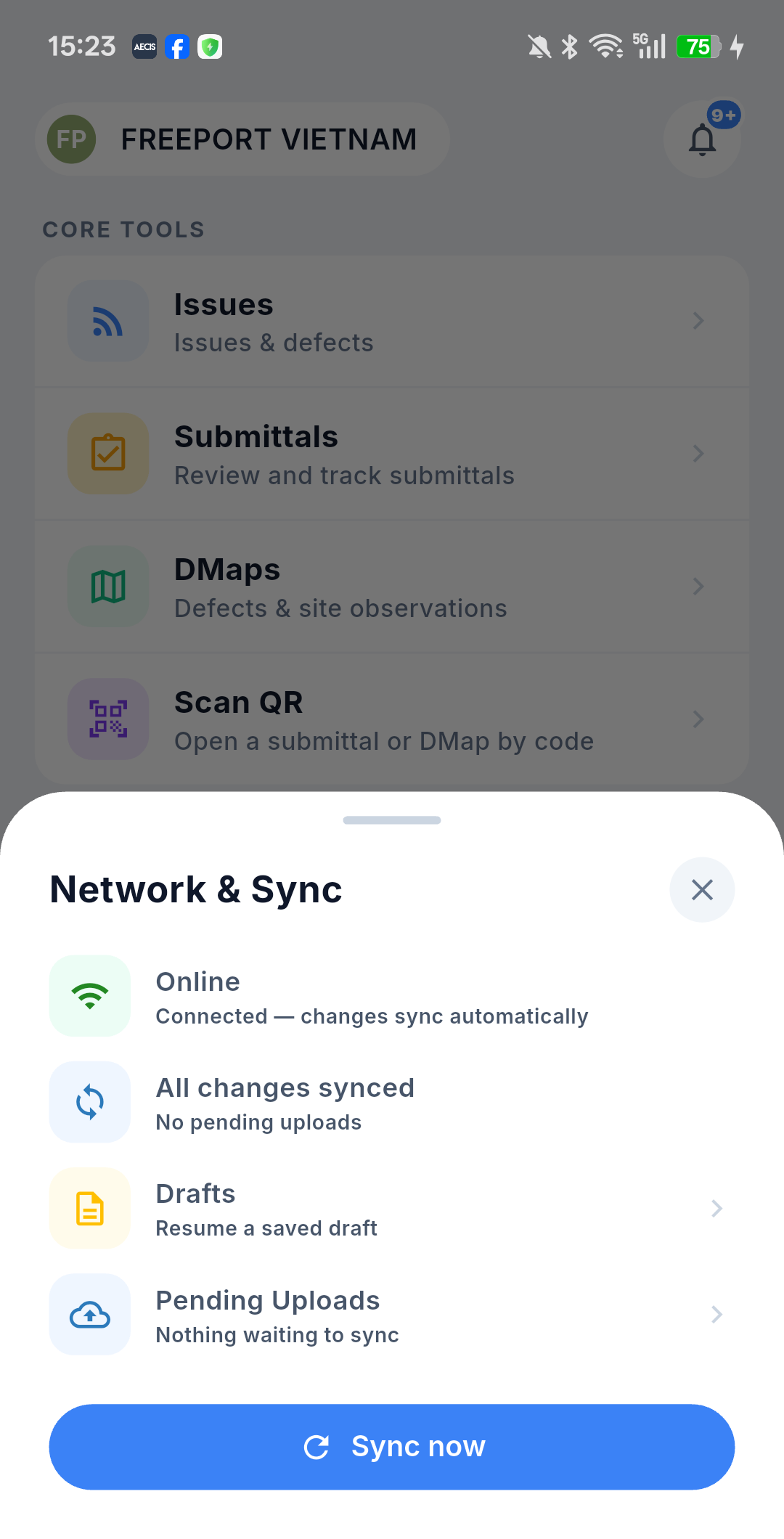
From here you can read the connection status and the sync status, open Drafts and Pending Uploads — where a queued submittal action shows its state and can be retried or cancelled — and press Sync now to push the queue immediately.