Filter & Search
Search
A Search submittals… box sits at the top of the list. Typing pauses briefly before searching, so the app does not fire a request on every keystroke.
The Filters screen
Tap FILTER to open the Filters screen.
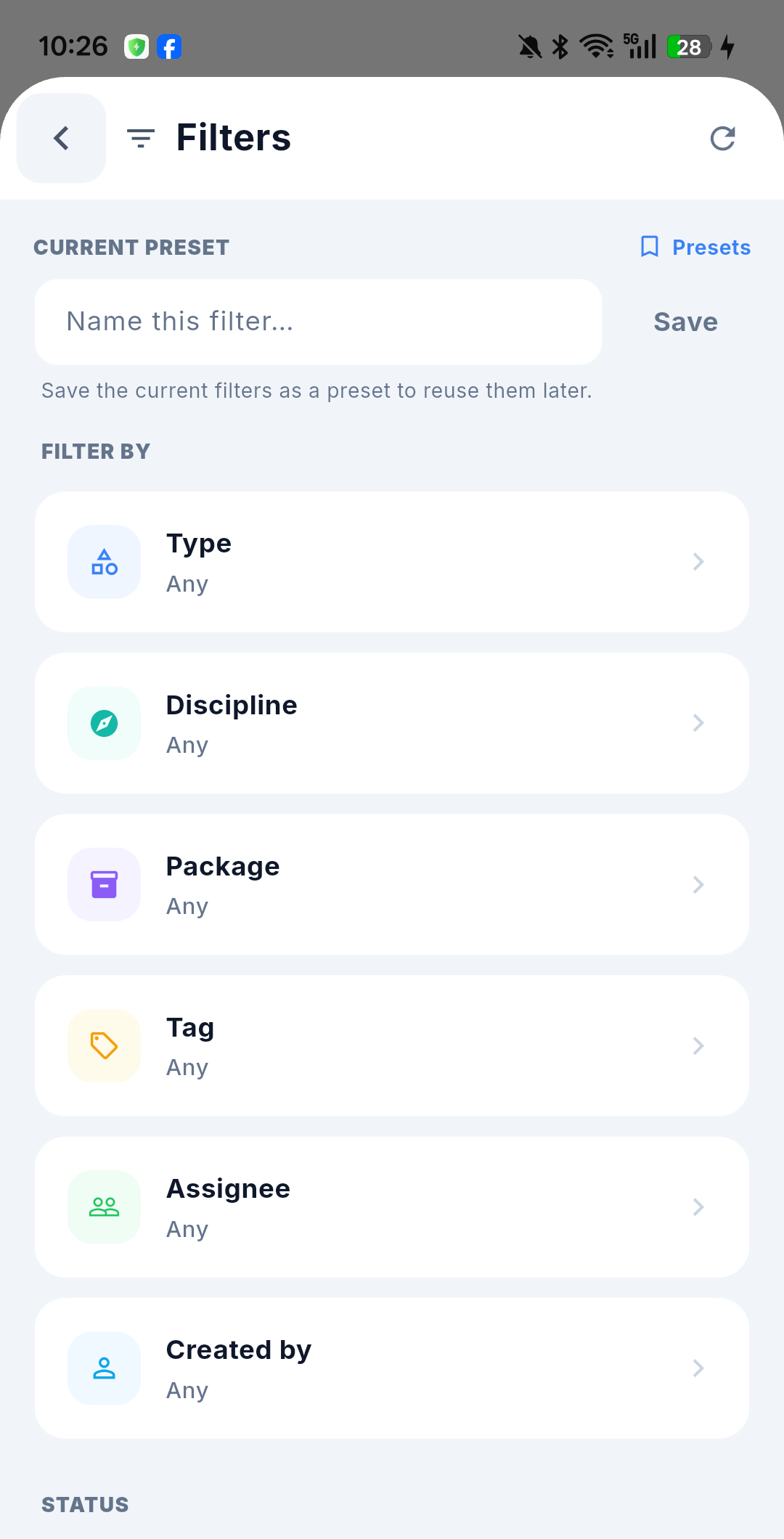
Six criteria are offered as drill-down rows, each showing Any until you set it:
| Criterion | Picks |
|---|---|
| Type | The submittal type — for example Material Approval |
| Discipline | The engineering discipline |
| Package | The work package |
| Tag | The DTag classification tree |
| Assignee | The current ball-in-court |
| Created by | The creator |
Below them are a STATUS block and a CREATED DATE range.
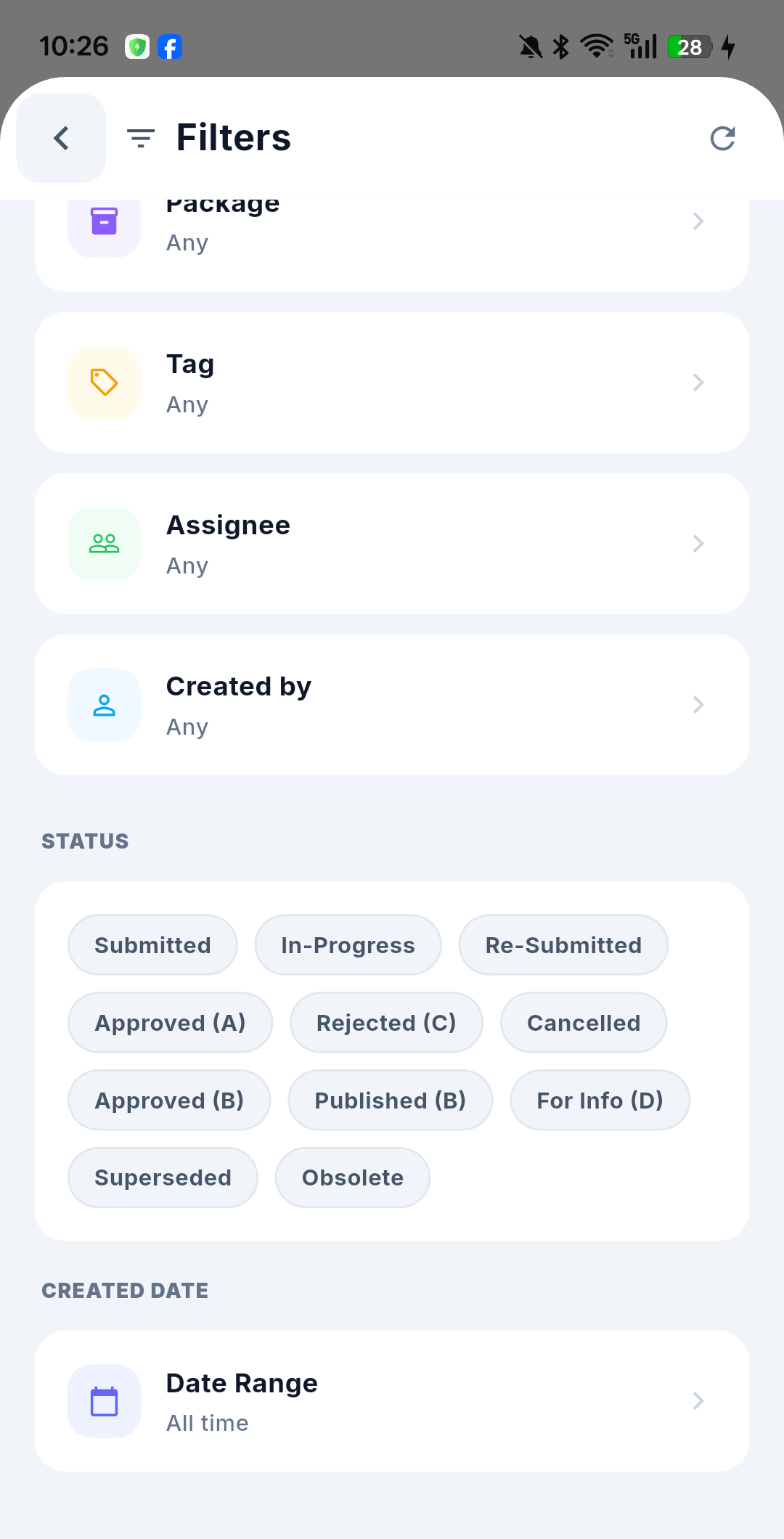
Status is chosen from chips, and the names come from the project configuration — in this project: Submitted, In-Progress, Re-Submitted, Approved (A), Approved (B), Rejected (C), Published (B), For Info (D), Cancelled, Superseded, Obsolete. Date Range defaults to All time.
How criteria combine
- Values within one criterion combine with OR — picking two disciplines returns submittals in either.
- Different criteria combine with AND — a status plus an assignee returns only submittals matching both.
Choose your conditions and tap Back. Leaving the Filters screen is applying it — the list re-filters as soon as the screen closes.
When filters are active, the filter button shows how many conditions are set — Filter (1), Filter (5) — rather than listing each condition as a named chip.
Presets — saved filters
The CURRENT PRESET block sits at the top of the same Filters screen:
- Type a name into Name this filter… and tap Save to store the current conditions as a preset.
- Tap Presets in the top right to open the Saved Presets sheet, pick a preset to apply it, or delete one you no longer need.
Spec Section is an old, unused field. It is not shown on mobile and cannot be filtered on. For the remaining differences see Web ↔ Mobile Differences.