Attachments & Documents
Documents can be attached inside any action form and on comments. Tap + Add Attachment on the form to choose where the file comes from.
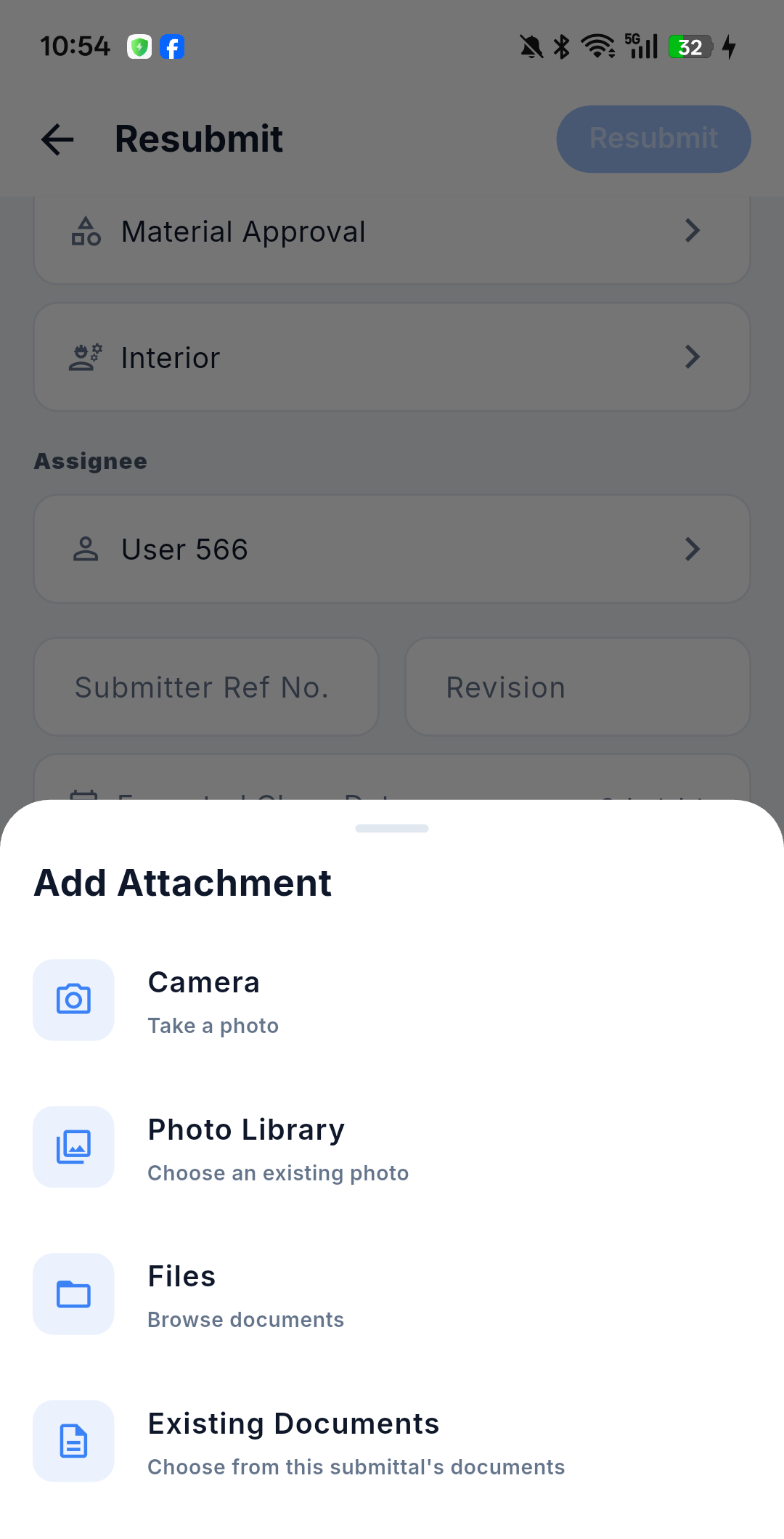
Sources
| Source | What the sheet says | Behaviour |
|---|---|---|
| Camera | Take a photo | Capture directly inside the app |
| Photo Library | Choose an existing photo | Multi-select; images are processed in the background |
| Files | Browse documents | A general document picker — PDF, Office documents, CAD and similar |
| Existing Documents | Choose from this submittal's documents | Re-attach documents the submittal already holds — see below |
Re-using the submittal's own documents
Existing Documents lets you put a document the submittal already holds into your action, without uploading anything again — useful when you approve or resubmit and want to carry a specific drawing forward.
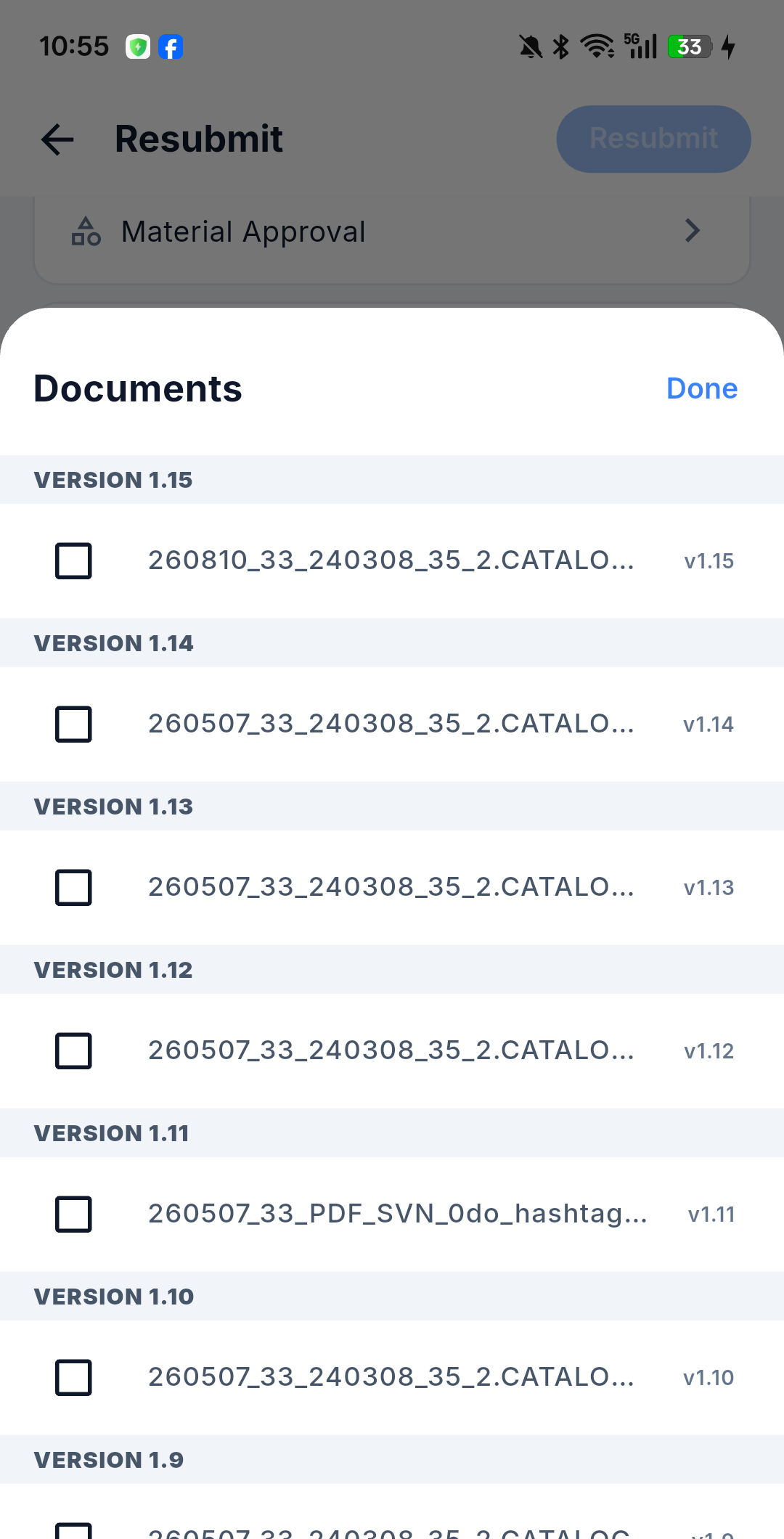
The picker:
- Groups the documents by version — one section per version, headed VERSION 1.15, VERSION 1.14 and so on.
- Sorts newest version first, so the current revision is at the top.
- Lets you tick as many documents as you need, across any versions.
- Shows each document's version badge to the right of its name.
Tap Done to add the ticked documents to the action's attachment list.
These files are already on the server, so selecting them does not start an upload — the connectivity rule below applies to newly captured or newly picked files only.
Where the submittal's documents appear
Documents submitted with the submittal appear in the Documents block near the top of the detail screen; documents that arrive with a later action appear on that action's entry in the timeline.
An action that carries newly attached documents cannot be queued offline — it is blocked with a message asking you to connect. Plan to be online when you approve with a stamped or re-uploaded document. See Working Offline & Sync.
QR-stamped documents
The switch is labelled QR Stamp — Apply QR watermark on PDF documents — and it is on by default. It appears only in the Approve and For Info action forms:
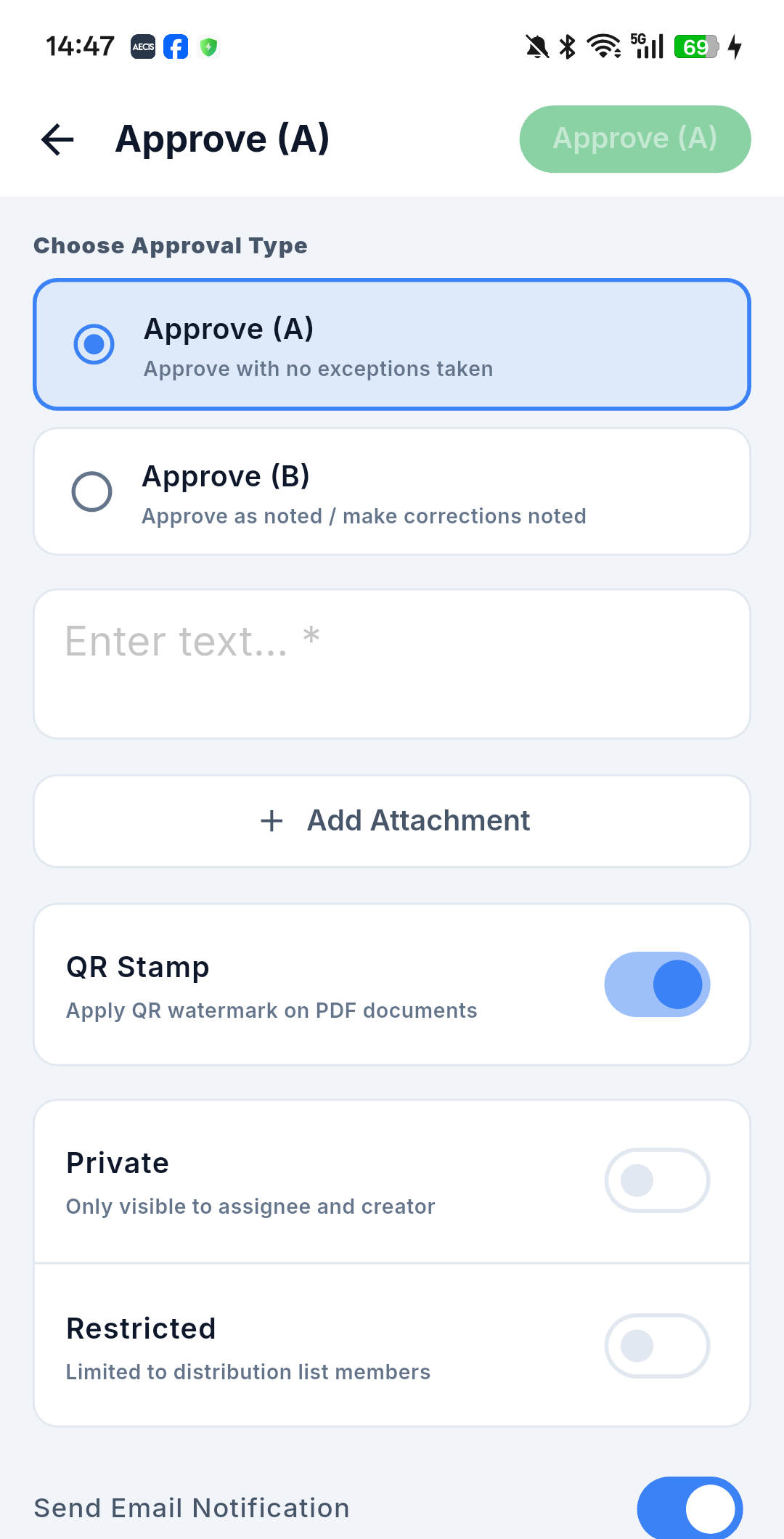
Leave it on and the system applies a QR-code review stamp to the PDF documents, then shows a result sheet listing exactly which documents were stamped. See Workflow Actions for the full form.
Stamped documents matter later: when a submittal is superseded, only the unstamped documents move to the new record, and the stamped ones stay behind as the historical approval.