Preview and Mark as Complete
Preview, opened from the button in the editor header, renders the real compiled report — the same PDF the scheduled send would produce for the project's configured send time, built from the report's data as it is right now. It is not a mock-up: what you see is what would go out.
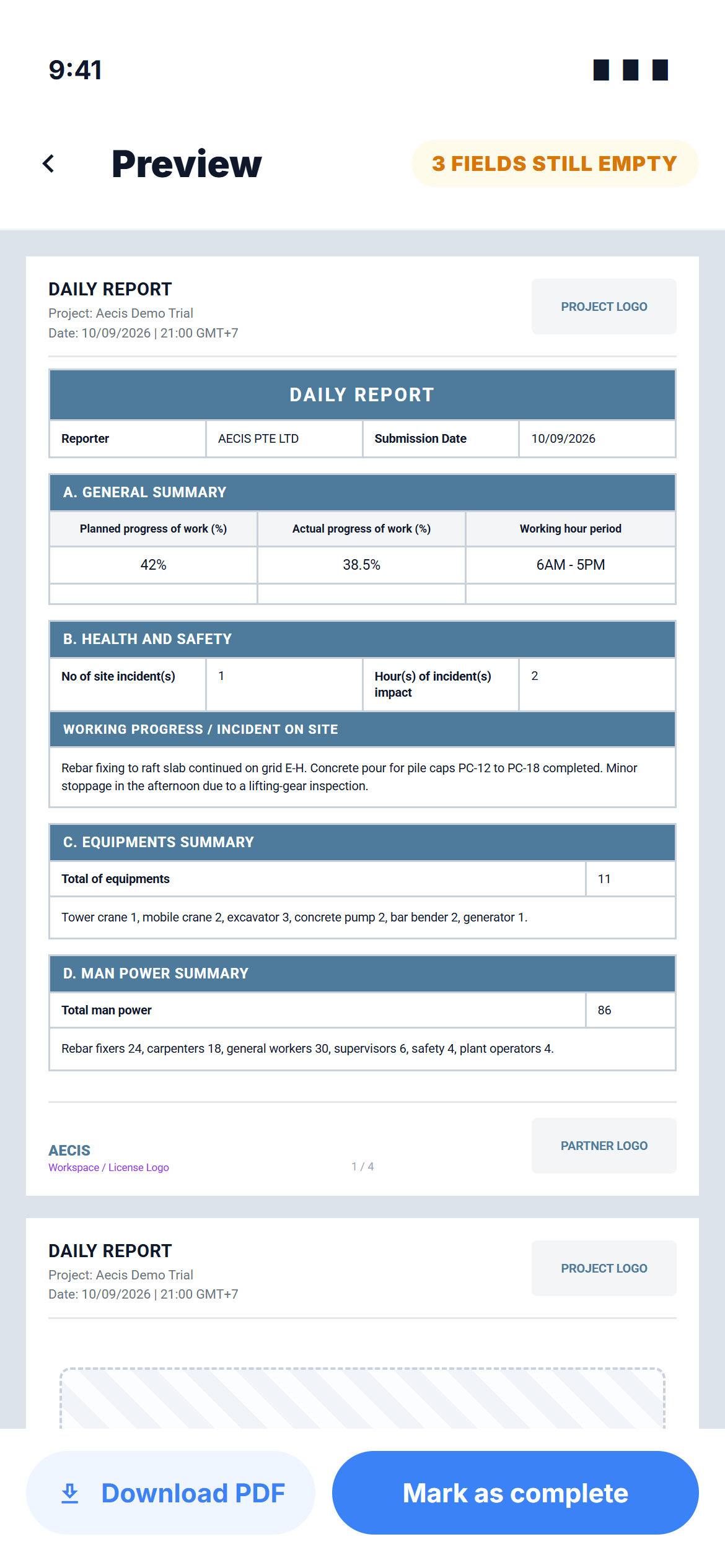
The header
- Back returns to the editor.
- A fill chip on the right tells you how complete the form is: ✓ ALL FIELDS FILLED, or 4 FIELDS STILL EMPTY. It is a hint, not a gate — nothing on this screen is blocked by empty fields, because every field is optional.
What the compiled report contains
The pages scroll under the header, each with the shared header (project name, date and send time, reporter, project logo) and footer (license logo, page number, partner logo).
| # | Page | Contents |
|---|---|---|
| 1 | Main data page | Reporter and submission date; General Summary — Planned progress %, Actual progress %, Working hour period, each with its remark beneath; Health and Safety — incident count, hours of impact, progress and incident details; Equipment Summary; Man Power Summary |
| 2 | PDF attachments | The attached PDFs, inserted page for page right after the main page |
| 3 | Per-zone photo pages | One section per zone, headed by the zone's leaf name, photos numbered with their captions and the capture time |
Two fallback pages, same design, different insertion point:
| Condition | Result |
|---|---|
| The stakeholder filed nothing at all | A single "No Daily Report" page replaces the whole report |
| The stakeholder reported but has no photos | A "No Photo" page stands in for the photo section only |
Photos and PDFs appear in the compiled document on both platforms — the phone renders exactly what the web send will.
The two actions
| Action | What it does | What it does not do |
|---|---|---|
| Download PDF | Downloads the rendered PDF you are looking at, on demand, and opens it in the viewer. Needs a connection — offline the button is greyed and tapping it says A connection is needed to download the PDF | Does not stamp completion, does not create an archive record |
| Mark as complete | Writes the moment you tap — who and when — into the report's completion line on the roster and in the editor, and returns you to the roster (or to the Tools home if the module opened straight into your report) | Does not produce a PDF, does not archive anything, does not send an email |
The confirmation after Mark as complete spells it out: Marked as complete · not sent yet — sending at 13:30.
The wording on the phone deliberately avoids "Submit" and "Send". Marking complete is the project's only record of when a stakeholder declared the report done; the scheduled send compiles and emails the report regardless of whether anyone tapped it. Tap it when the report is actually finished — not in advance, and not long after.
Completing again
There is no lock after completion. You can go back, keep editing, and mark complete again — the stamp simply moves to the newer time and name. Only the last completion is kept.