Working Offline & Sync
Daily Report uses the same app-wide offline machinery as issues, submittals and DMaps: the yellow No internet connection banner, the manual Offline Mode switch, the Network & Sync sheet, Drafts and Pending Uploads. Those screens are described once in Offline Mode & Sync Management; this page covers what is specific to reports.
What goes into the queue
Every kind of change the module makes is saved on the device first and sent when a connection is available:
| Change | What you see offline | Queue label |
|---|---|---|
| Report fields | Status line reads Saved on device · syncs when online; the sync badge turns Pending | Report figures |
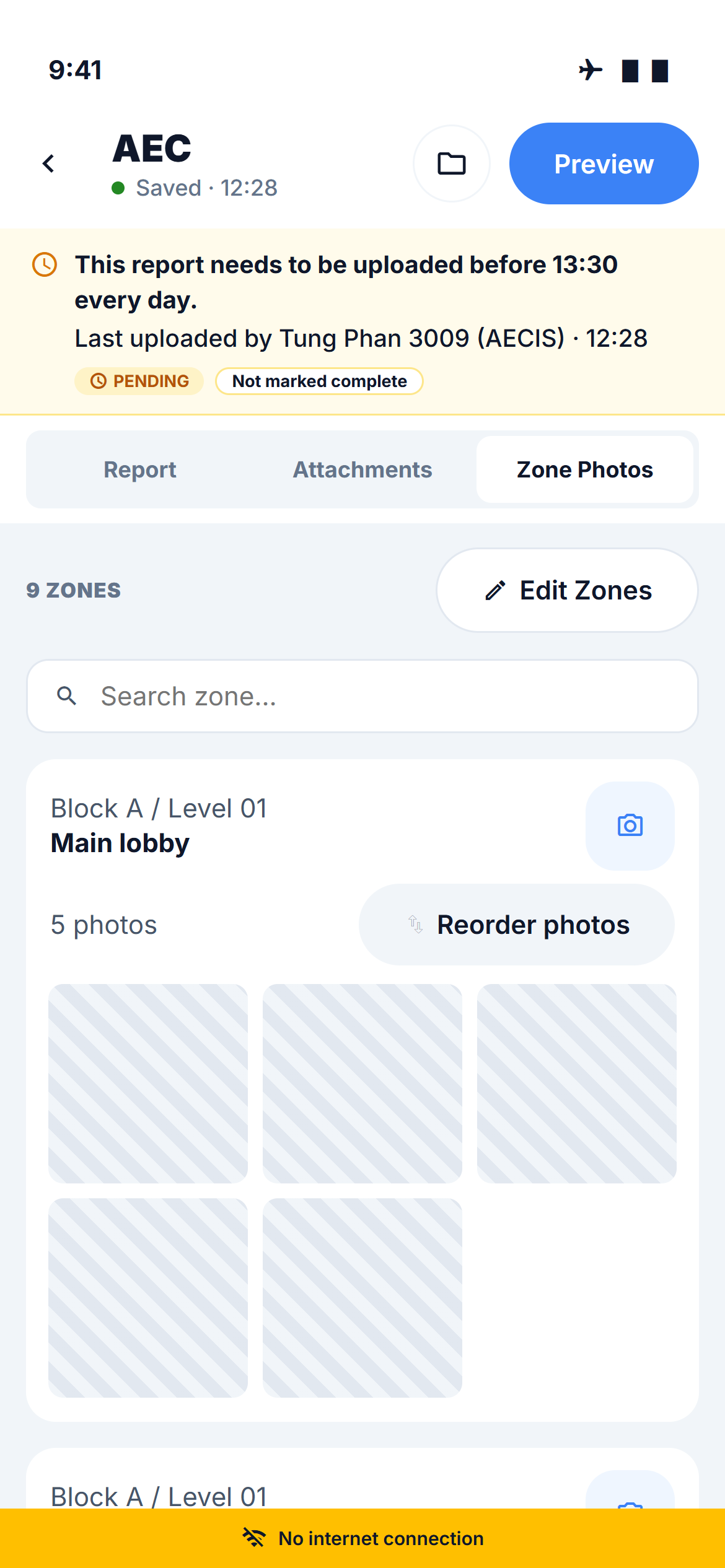
| Zone photos | The thumbnail carries a ⇡ mark; the viewer card shows a PENDING badge; toast Saved on device — waiting to sync | Report photo — Corridor A · 1 photo |
| PDF attachments | Toast Saved on device — waiting to sync | Report attachment |
| Zone list changes, photo order, captions, deletions | Applied immediately on the device | Sent with the report |
The order you arranged for zones and photos is part of what is queued, so the print order you set offline is the print order that reaches the project.
Drafts are not queue items
A draft is text you typed that has not been saved yet — it lives on this device only. A pending upload is a change that has been saved and is waiting for a connection. The app counts them separately: drafts show up on the Drafts screen and in the unsaved draft banner at the top of the report; queued changes show up under Pending Uploads.
A draft survives closing the app. When you reopen the report you choose Save it now or Discard — see Filling In a Report.
Sync states
The sync badge on the roster card and in the editor header shows the state of this device's changes for that report:
| Badge | Meaning |
|---|---|
| Synced | Nothing waiting |
| Pending | Saved on the device, waiting for a connection |
| Syncing | Being sent now |
| Error | The last attempt failed |
A failed sync is retried automatically a limited number of times, then stops. From that point it waits for you: Retry next to the status line in the editor, or Retry on the row under Pending Uploads. Retrying while offline does nothing except leave the item queued.
What needs a connection
| Action | Offline |
|---|---|
| Reading and editing the report, taking photos, attaching PDFs | ✅ Works — queued |
| Marking a report complete | ✅ Works — the stamp is queued with the report |
| Download PDF in Preview | ❌ A connection is needed to download the PDF |
| Opening or downloading a file in the Reports archive | ❌ A connection is needed to open |
| Downloading an attachment from the Attachments tab | ❌ Button greyed out |
The Preview itself still renders offline from the data on the device.
The deadline does not care about the queue
The scheduled send takes whatever has reached the project at the send time. A change that is still queued on your phone when the send runs is not in that day's PDF — it lands on the project when you reconnect and goes out with the next send. The deadline line in the module is there to remind you to get back on a connection in time; it never blocks anything.
Error codes
Every failure the module can report carries a business code from DR-E01 to DR-E12 — roster, report, zones, save, files, rendering, archive and completion each have their own. When you contact support, quote the code shown in the message; DR-E04 is the one you will meet most, a failed save.