Filling In a Report
Tap a card on the roster — or open Daily Report if you only hold Read all / Write all — to land in the editor for one stakeholder's report. It fills the whole screen.
The editor shell
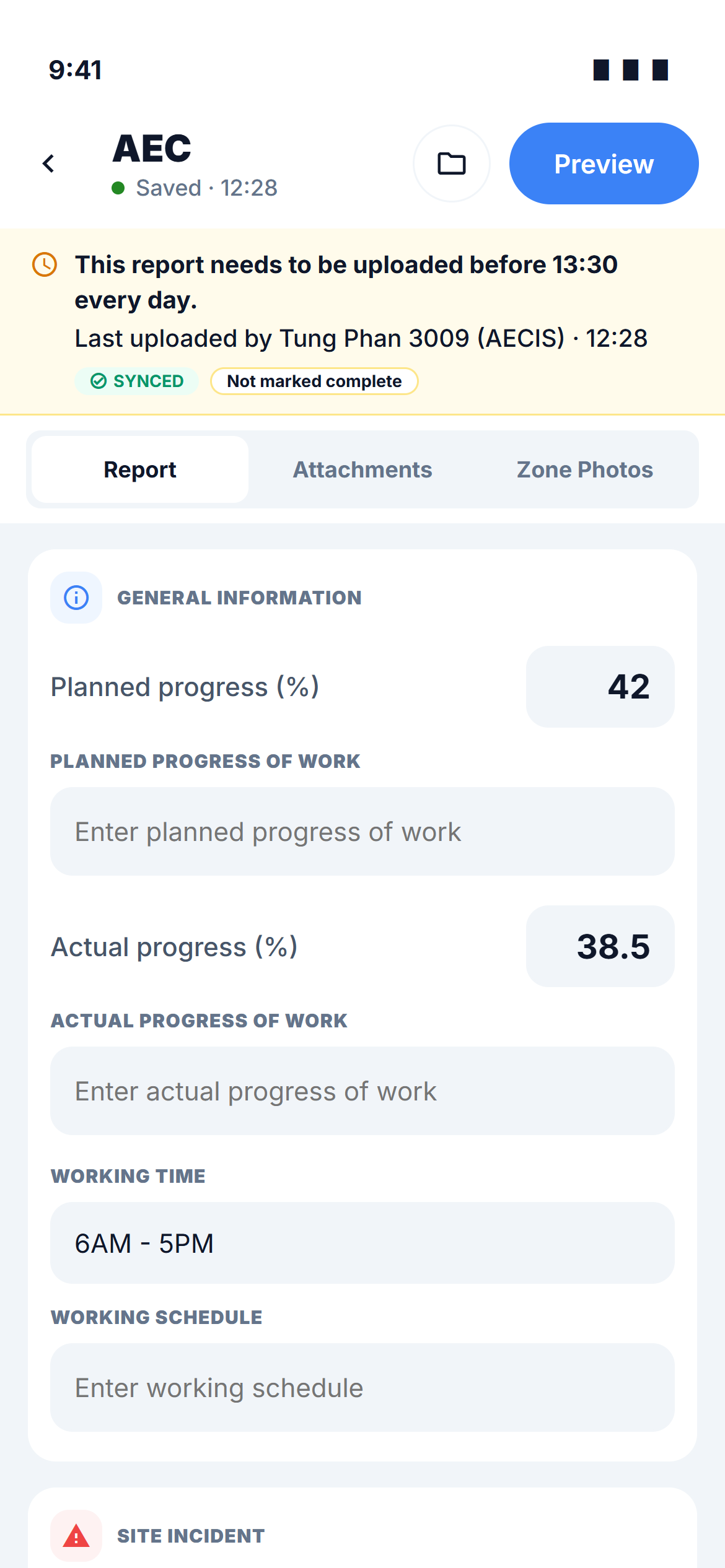
The header carries, from left to right:
- Back — leaves the editor. If you were mid-edit, the change is saved first and a toast confirms it (see Leaving the screen).
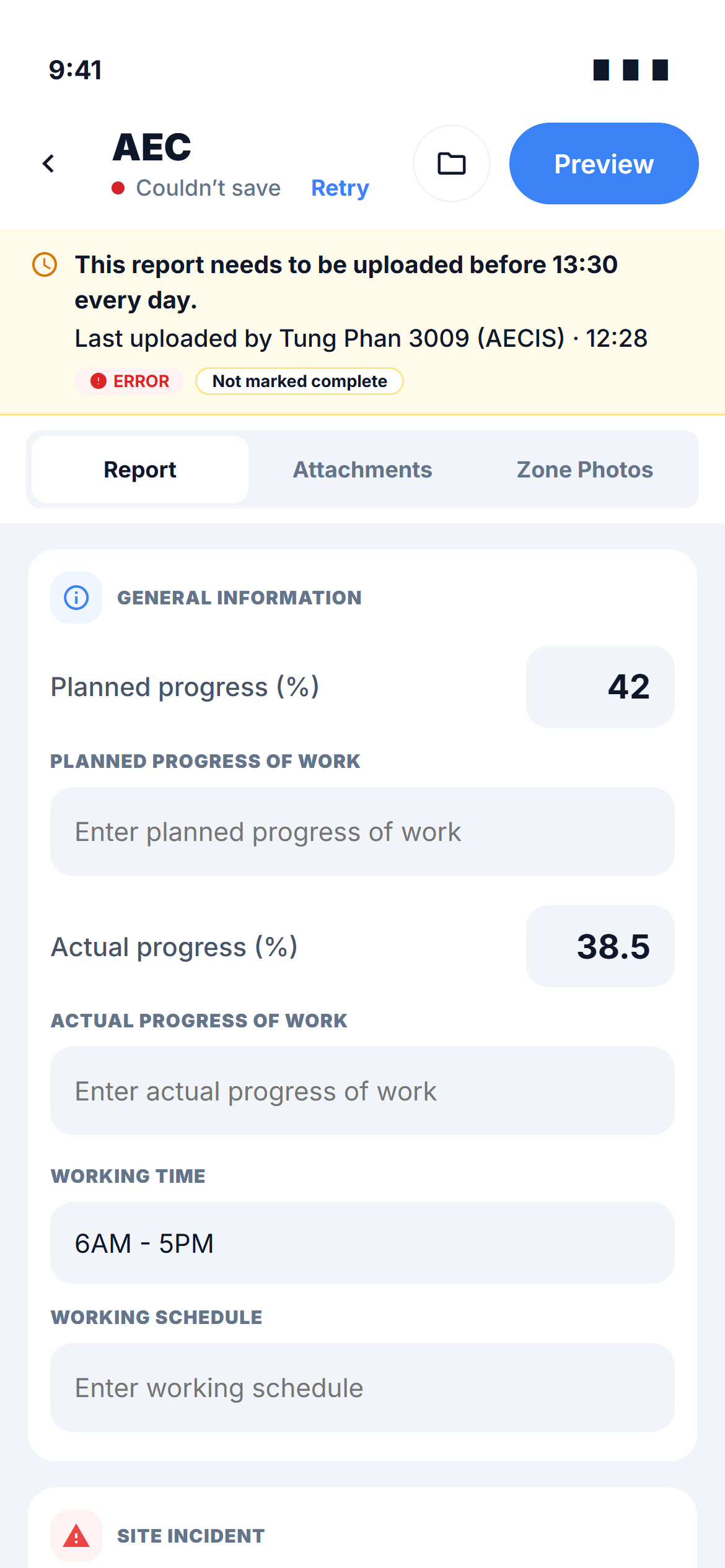
- The stakeholder's abbreviation as the title, with the autosave status under it — Saved · 12:28, Editing…, Saving…, Saved on device · syncs when online or Couldn’t save. When a save fails a Retry link appears right next to the status.
- A folder button that opens the Reports archive.
- A Preview button that opens the compiled report.
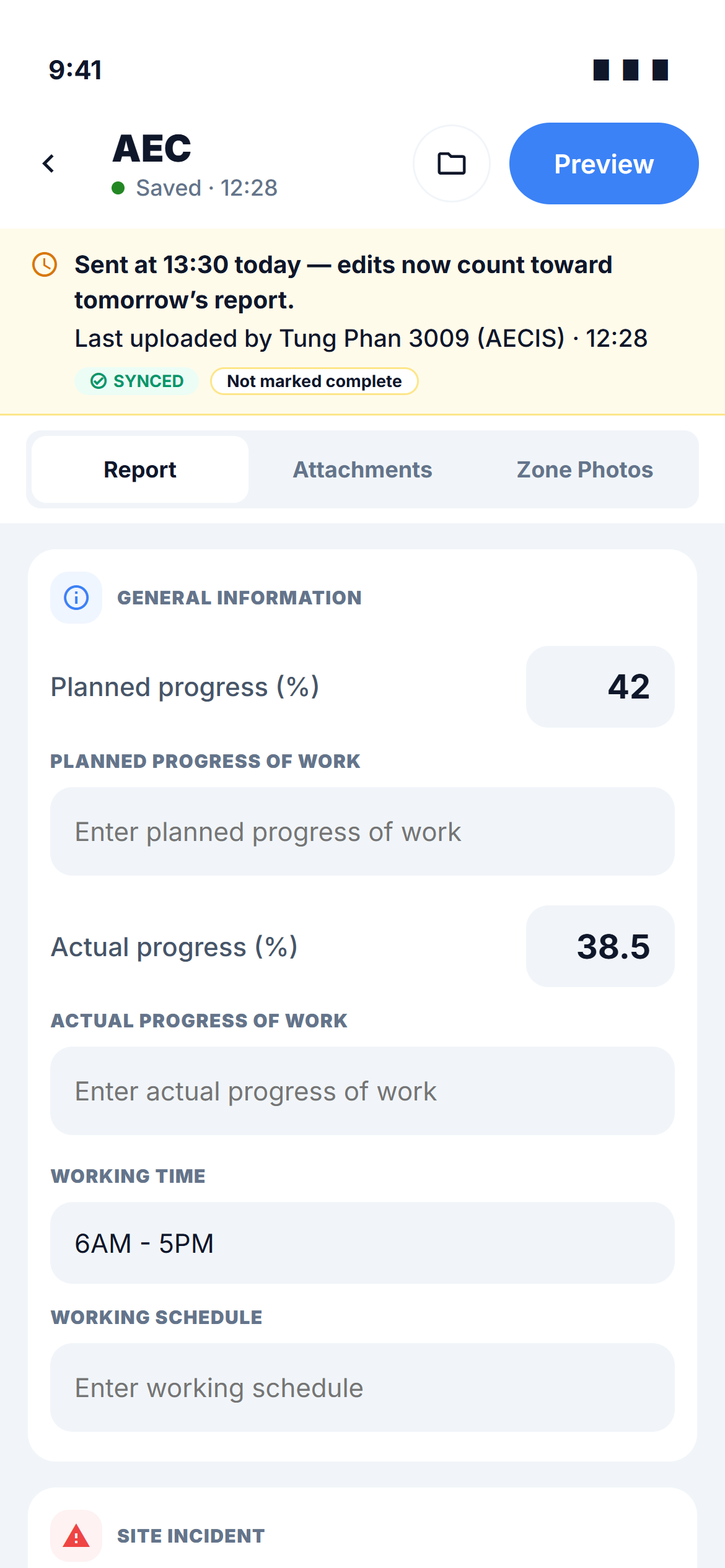
Below the header sits the deadline row: This report needs to be uploaded before 13:30 every day — or, once today's send has run, Sent at 13:30 today — edits now count toward tomorrow’s report. Under it, the same three facts the roster card shows: who last uploaded and when, the sync badge, and the completion line.
Then the three tabs:
| Tab | Contents |
|---|---|
| Report | Progress, working time, incidents, manpower, equipment — described below |
| Attachments | The report's PDF files |
| Zone Photos | Site photos, filed zone by zone |
The Report tab
The same 13 fields as the web form, grouped into three cards so they read comfortably on a phone. Every field is optional. Remarks sit directly under the figure they explain.
| Group | Fields |
|---|---|
| General information | Planned progress (%) · Planned-work remark · Actual progress (%) · Actual-work remark · Working time (free text, e.g. 6AM - 5PM) · Working-schedule remark |
| Site incidents | Number of incidents · Hours of impact · Progress-of-work and incident details |
| Manpower & equipment | Total manpower · Manpower details · Total equipment · Equipment details |
Numeric fields open the number keypad; remark fields grow as you type.
Zones are chosen on the Zone Photos tab, where the need for a zone actually arises.
Autosave — there is no Save button
Each field saves on its own, either when you leave the field or after you stop typing for about 1.5 seconds. A save carries only the fields you changed and is all-or-nothing: either every changed field lands, or none does and the data stays on the device for a retry.
The status line under the title tells you where things stand:
| Status | Meaning |
|---|---|
| Saved · 12:28 | The last save reached the project at that time |
| Editing… | You have unsaved text; it is held on this device only |
| Saving… | The changed fields are being sent |
| Saved on device · syncs when online | You are offline; the change is queued and will be sent automatically |
| Couldn’t save | The save was rejected or the connection dropped mid-save — your text is still there. Tap Retry next to the status |
A failed save is reported with the business error code DR-E04, so support can tell it apart from other failures.
Drafts — what you typed never disappears
Every character you type is kept on the device as a draft, and a draft survives closing or killing the app. A draft is not the same thing as a queued upload: a queued item is a change that has already been saved and is waiting for a connection; a draft is text that has not been saved yet.
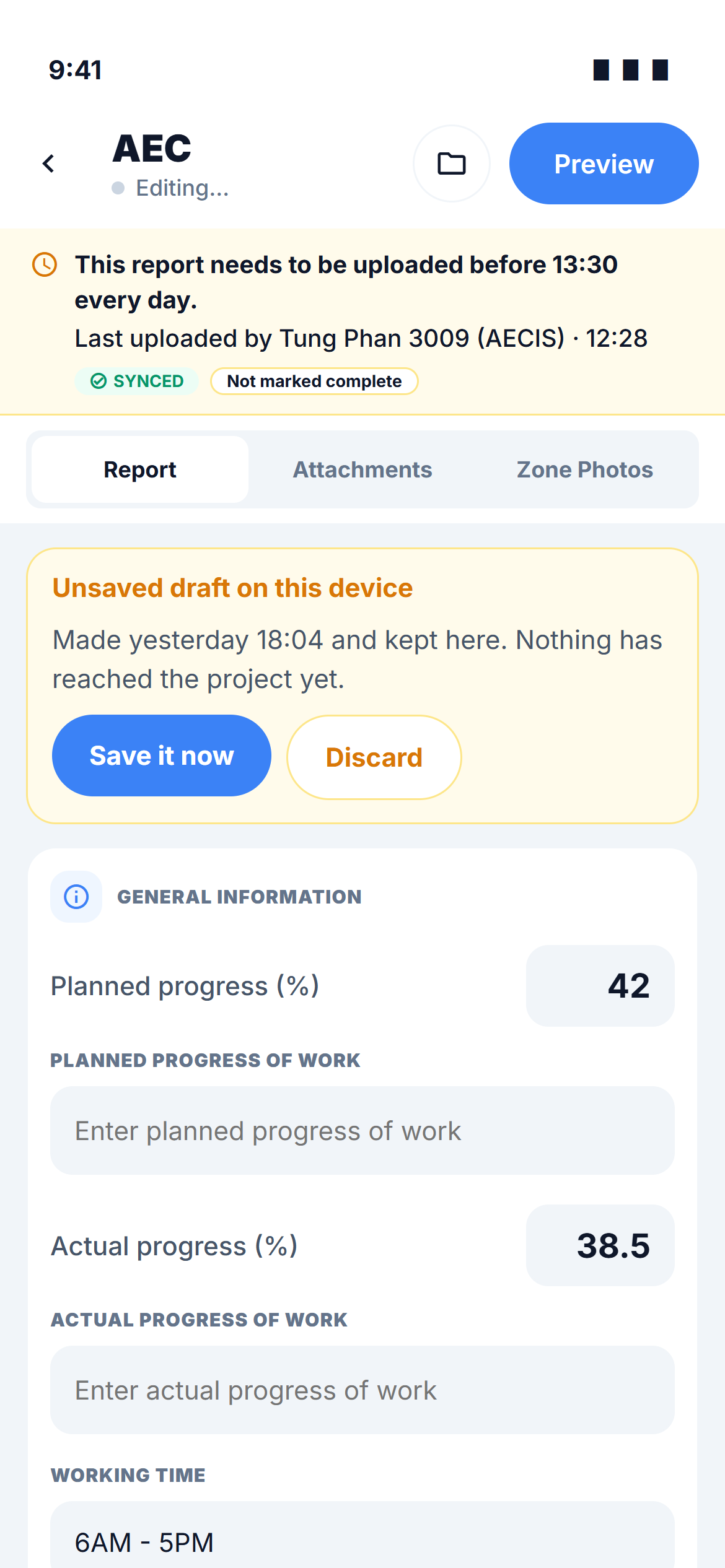
When you reopen a report that still holds a draft, a banner sits at the top of the Report tab:
Unsaved draft on this device Made yesterday 18:04 and kept here. Nothing has reached the project yet.
with two actions:
| Action | What it does |
|---|---|
| Save it now | Saves the draft's fields to the project (or queues them if you are offline) |
| Discard | Drops the draft and shows the last saved figures again — no undo |
Leaving the screen
Back is not a submit. Leaving the editor with an unsaved change simply commits that change and tells you so with a toast — Draft saved on leaving, or Saved on device — waiting to sync when offline. Nothing is marked complete and nothing is sent by walking out of the screen; completion happens only through the explicit Mark as complete action.
The deadline is the scheduled send time and nothing else. Past that time you can still edit, save and mark the report complete — the app never locks the form and never flags a report as late. Whatever is on the report when the send runs is what goes out.
The two states you will see, and the one you will not
The editor shows the save state (the status line) and the completion state (the ✓ Complete … line) side by side, and they stay independent: a report can be saved but not marked complete, or marked complete and then edited again. Neither one ever turns into a "sent" label — only the scheduled send sends, and what it sent is listed in the archive.
What is remembered
The report keeps only the last change (who, when) and the last completion stamp (who, when). There is no edit history to browse on either platform.