Attachments
The Attachments tab holds the report's PDF files — signed records, test results, method statements, anything that belongs with the day's report as a document rather than a photo. In the compiled report these PDFs are inserted as-is, page for page, right after the main data page.
PDF only, as on web.
Adding a file
Tap Add PDF file at the bottom of the tab. The phone's own file picker opens on the device's files — recent PDFs first, with a search box.
- Tap a file to select it; tap again to deselect. You can select several at once — the button reads Add (3) as you go.
- Add attaches the selection to the report immediately. There is no upload dialog and no confirmation step.
- Cancel closes the picker without changing anything.
Offline, the files are saved on the device and the toast reads Saved on device — waiting to sync; they upload by themselves when you are back online.
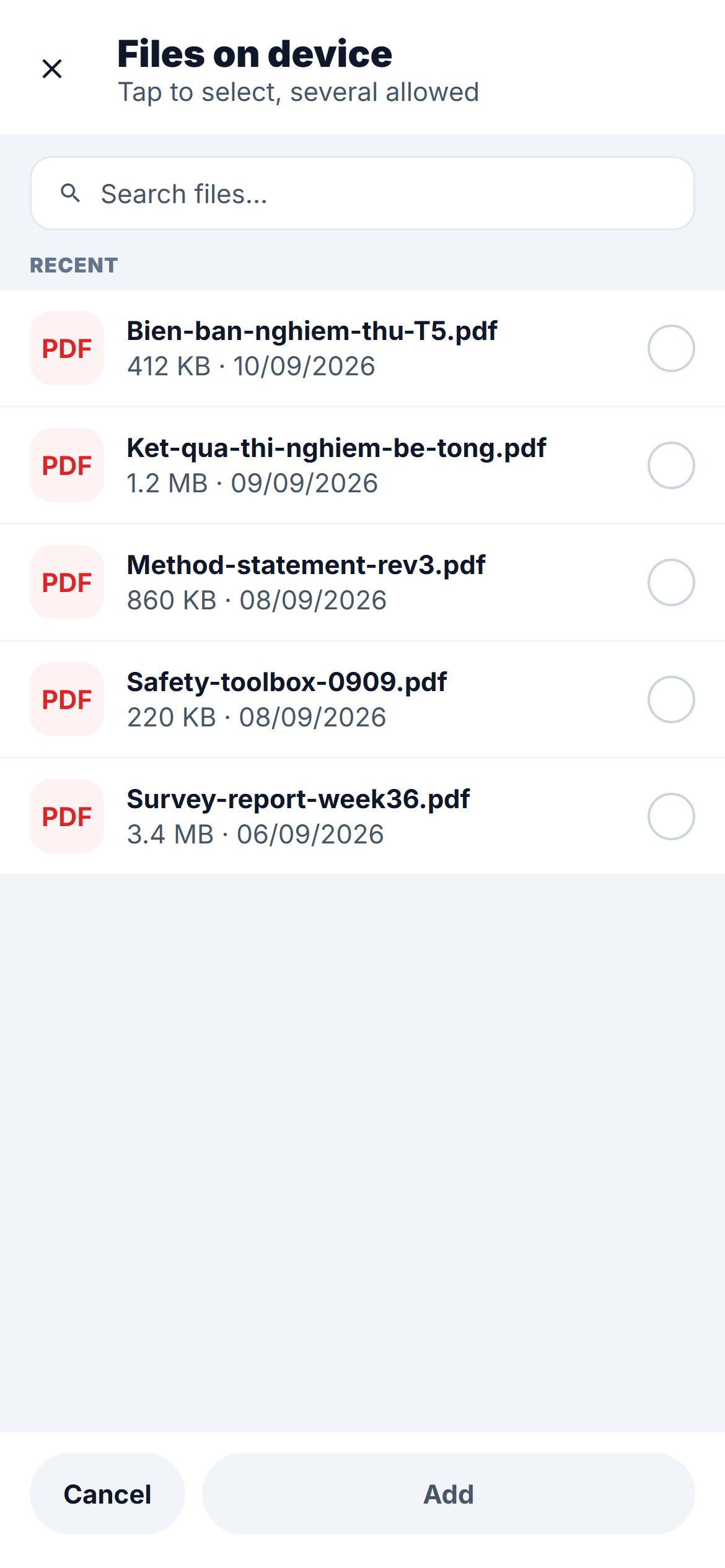
The picker shows the device's files, not the project's document library. To attach something that only exists on the web, download it to the phone first.
The file list
One row per file, with the PDF icon, the file name and a metadata line — size · uploader · time.
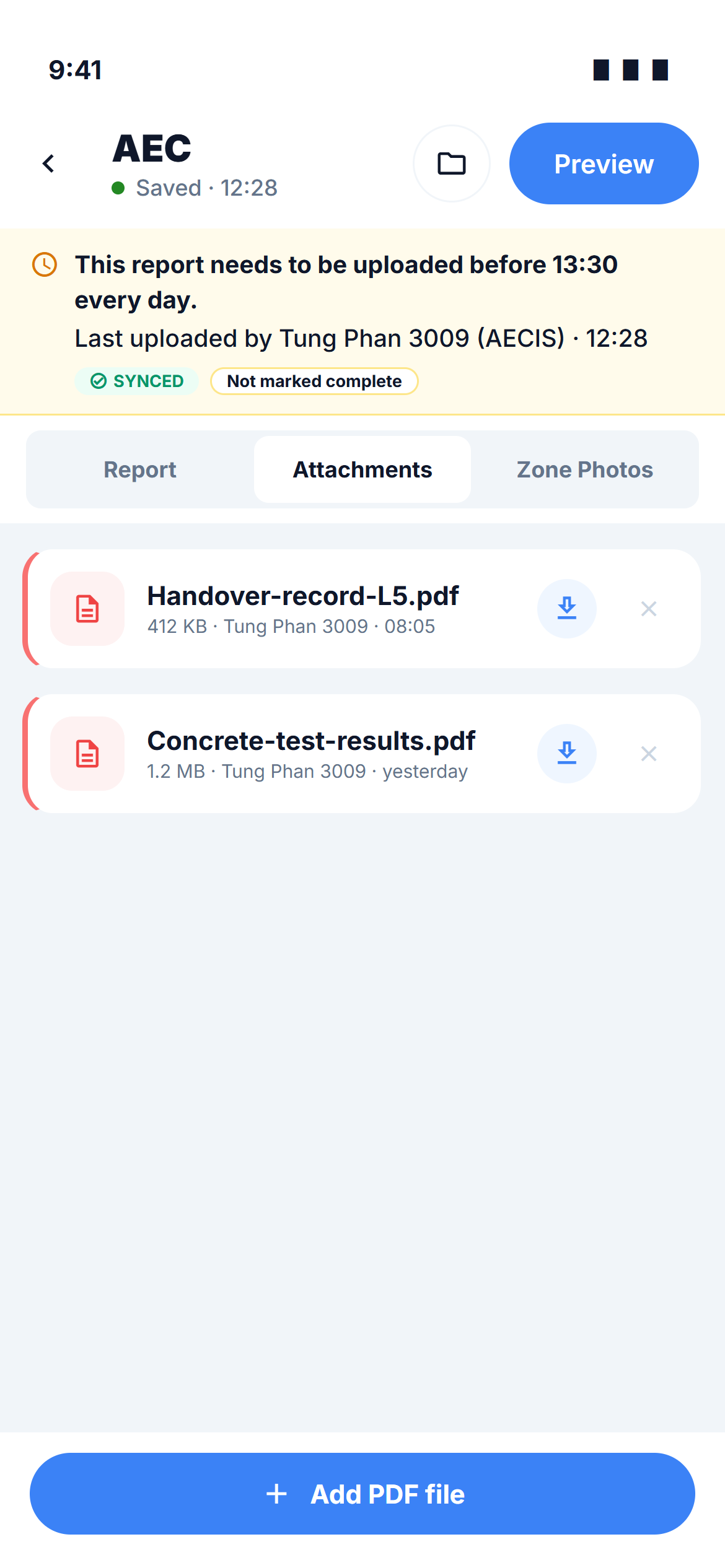
| Action | How | Notes |
|---|---|---|
| Open | Tap the row | Opens the PDF viewer |
| Download | The ⇩ button on the row | Needs a connection — offline the button is greyed out and tapping it says so |
| Remove | The ✕ button on the row | Detaches the file from the report only; the PDF itself stays where it was on the device and on the project. No confirmation, no undo |
An empty tab shows No files yet — attach the PDFs that belong with the report.
What the attachment means for the compiled report
Every PDF on this tab is printed inside the compiled report, after the summary page and before the zone photos. The Preview shows a page for them so you can check they are there.