DMap Module — Overview
This page covers the web app. For the phone version see the DMap Module (Mobile), or the Web ↔ Mobile differences.
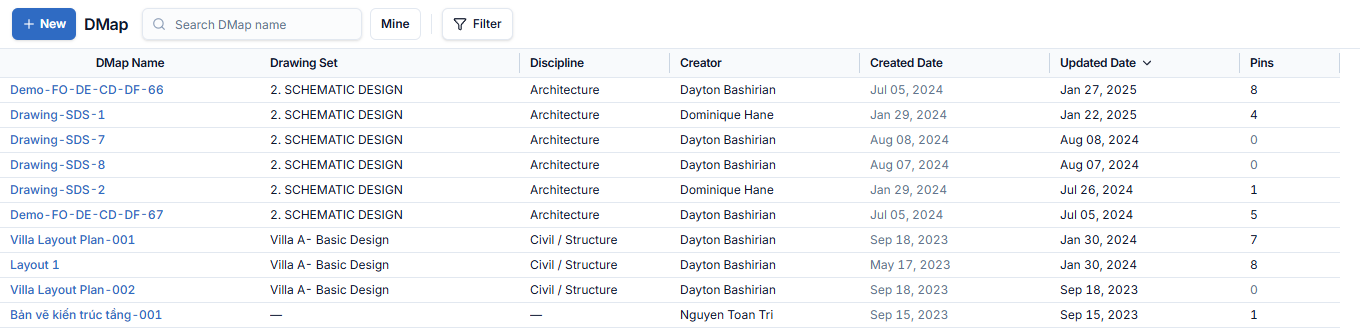
The DMap module lets project members register engineering drawings and open any drawing in a full-page viewer where every issue linked to that drawing appears as a color-coded pin at its exact location. Browse the register, upload PDF drawings, create or link issues right on the drawing, filter the pinned issues, hover to preview, and click through to the full issue detail.
You will find it in the Documents group of the navigation sidebar.
Key concepts
| Term | Meaning |
|---|---|
| DMap | A registered engineering drawing — one record per drawing, with metadata and a rasterized image used in the viewer |
| Drawing Set | A named grouping of related drawings (e.g. a discipline package or sheet series), belonging to the project it was created in |
| Discipline | The engineering discipline of a drawing (Architectural, Structural, Mechanical, …) |
| Pin | A marker placed on a drawing at an issue's recorded location — one pin = one linked issue |
Two screens
- DMap List — the DMap register: a high-density grid with search, filters, and column management. Clicking a DMap's name opens the viewer.
- DMap Viewer — a full-page screen with the drawing canvas on the right (pan, zoom, pins) and an issue panel on the left (filter, search, cards).
Tight coupling with the Issue module
Pins represent issues: they use the exact Issue status color palette, and clicking a pin opens the same Issue detail panel used in the Issue module — properties, tabs, and actions behave identically.
| Pin color | Status |
|---|---|
| 🔴 Red | Overdue |
| 🔵 Blue | Open / Reopen |
| 🟠 Amber | Done |
| 🟢 Green | Closed |
| ⚪ Grey | Cancelled |
Placing pins from the drawing
You can place pins directly in the viewer:
- Create an Issue on the Drawing — click an empty spot and raise a new issue there, optionally with Auto-Fill from DTags (AFD).
- Link an Existing Issue — click an empty spot and pin an issue that already exists.
- Move or Unlink a Pin — drag a pin to a new position, or remove it from the drawing without deleting the issue.