Move or Unlink a Pin
Move a pin
-
In the viewer, drag the pin to its new position.
-
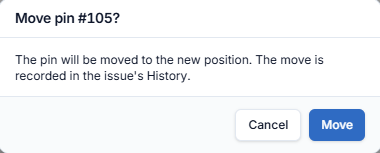
A dialog asks "Move pin #N?" and explains that "The move is recorded in the issue's History." Click Move, or Cancel to put the pin back.
A toast confirms "Pin moved."
Unlink a pin
Unlinking removes the pin from this drawing only. The issue itself stays in the project with all its data.
-
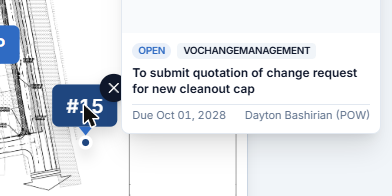
Hover the pin. A small × appears on its corner, next to the issue preview.
-
Click ×. A dialog asks "Unlink pin #N?" and reminds you that "The issue stays in the project — it only leaves this drawing."

-
Click Unlink, or Cancel to keep the pin.
A toast confirms "Pin unlinked."
tip
To delete the issue itself, open it from the Issue module. Unlinking never deletes an issue.