Link an Existing Issue
Place an issue that already exists in the project onto the drawing, without creating a new one.
Steps
-
In the viewer, click an empty spot on the drawing.
-
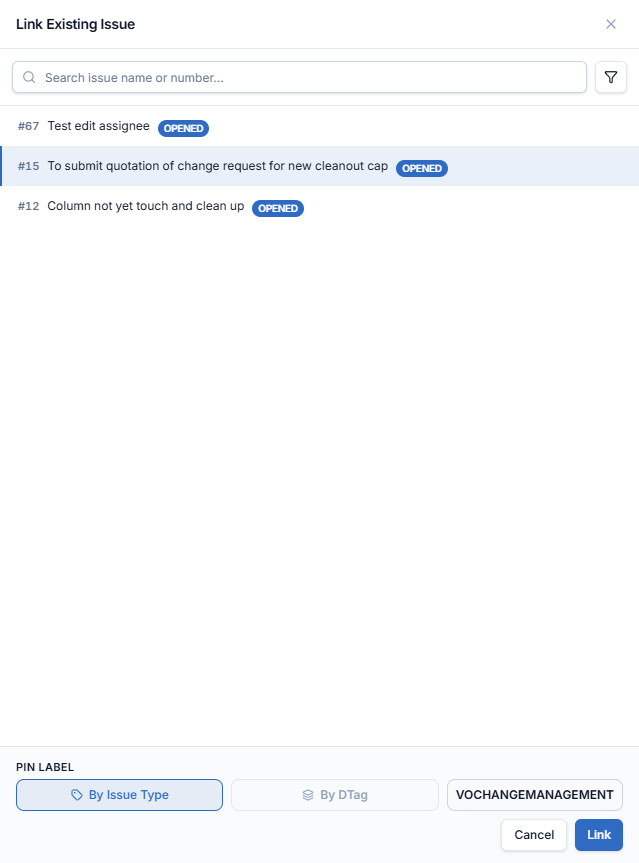
In the menu, click Link existing issue. The Link existing issue panel opens with the issues you can link.
-
Find the issue:
- Type in Search issue name or number…, or
- Click the filter icon and filter by Status, Type, Discipline, Package, Creator, Assignee or Due Date, then Apply. Clear all resets the filter.
-
Click the issue to select it.
-
Choose where the Pin label comes from: By Issue Type or By DTag. The box on the right previews the label. See Create an Issue on the Drawing for details.
-
Click Link.
A toast confirms "Issue linked to this drawing." The pin appears at the clicked spot, and the issue count in the header goes up by one.
Which issues are listed
The panel lists only issues that can be linked to this drawing, such as open issues of the project. Issues already pinned on this drawing are not listed.