Auto-Fill from DTags (AFD)
AFD (Auto-Fill by DTag) builds an issue's Name, Description and DTag from values you tick in the project's DTag tree. Use it to record defects quickly with consistent wording, e.g. "Balcony tiles | Popping".
On the web, AFD is available in the New Issue panel — both when you create an issue from the Issue list and from a drawing (Create an Issue on the Drawing).
Prerequisites: the project's DTag tree contains the defect groups you want to pick from.
Steps
-
In the New Issue panel, click AFD Select — Auto-fill from DTags › under Name. The first time, the AFD panel is empty: "No selection yet. Use Select DTags to choose the DTag groups to pick from."
-
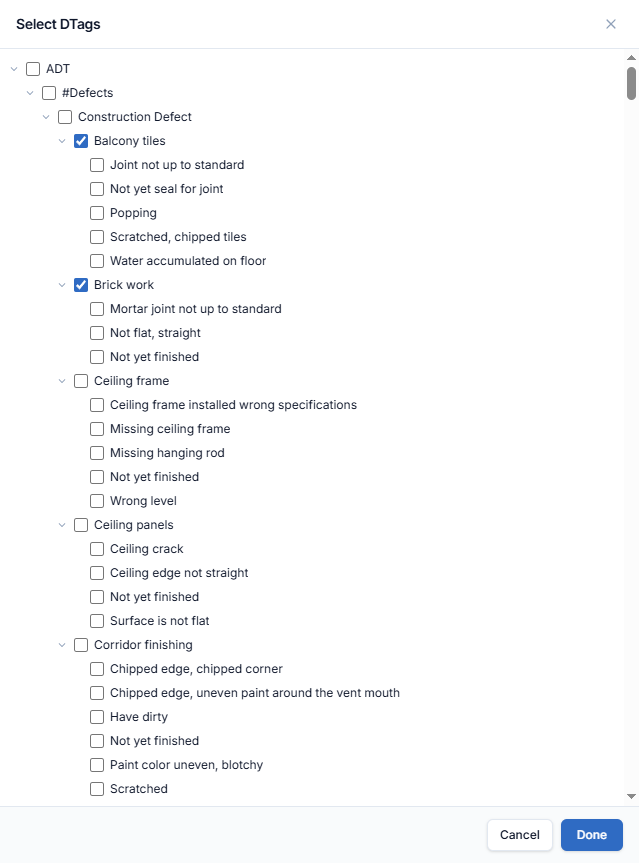
Click Select DTags. The DTag tree opens with checkboxes (e.g. ADT › #Defects › Construction Defect › Balcony tiles).
-
Tick the groups you want to pick from (e.g. Balcony tiles, Brick work), then click Done.
-
The AFD panel now shows each group as a heading with its values as checkboxes. Tick one or more values (e.g. Popping under Balcony tiles, Mortar joint not up to standard under Brick work).
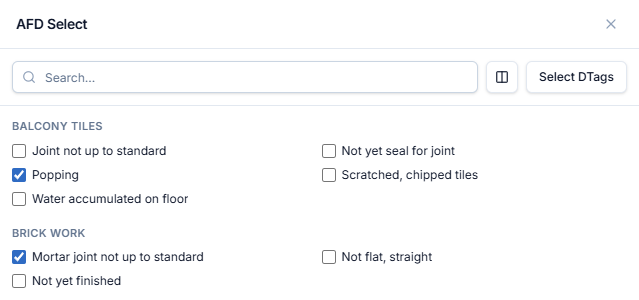
- Use the search box to find a value by name.
- Use the layout toggle to switch between one and two columns.
- Clear unticks everything. Select DTags lets you change the groups.
-
Click Done.
What AFD fills in
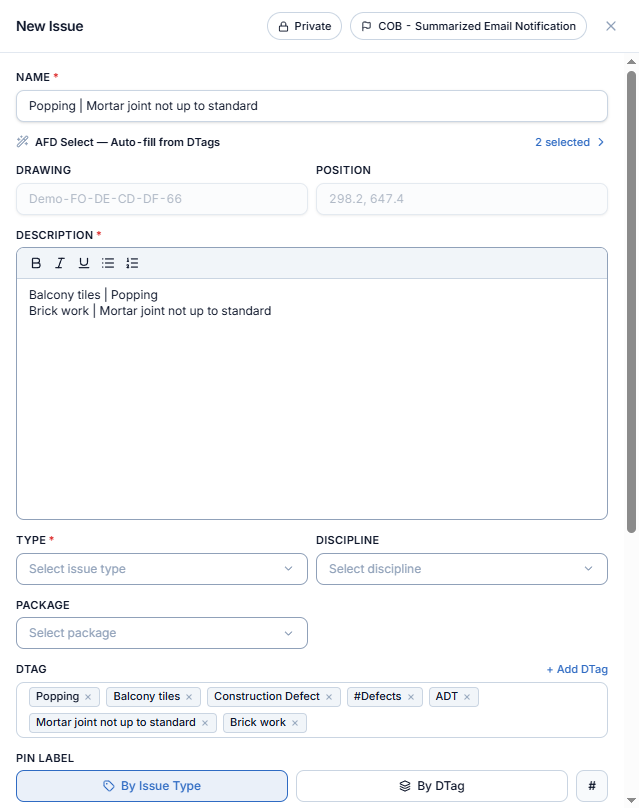
With Popping and Mortar joint not up to standard ticked:
| Field | Result |
|---|---|
| Name | Popping | Mortar joint not up to standard, the ticked values joined by | |
| Description | One line per value, Group | Value:Balcony tiles | PoppingBrick work | Mortar joint not up to standard |
| DTag | Each ticked value and all its parents (e.g. Popping, Balcony tiles, Construction Defect, #Defects, ADT) |
The AFD link now reads N selected ›. Click it again to change the selection.
AECIS remembers the DTag groups you chose, so the next time you open AFD the same groups are ready to pick from.
You can still edit Name and Description by hand after AFD fills them.
Set Pin label to By DTag to label the pin from the picked value. In Label view the pin shows it as a short code, e.g. PP for Popping.