Submit a DForm
Submitting turns the DForm into a Submittal that follows the normal review workflow.
Steps
-
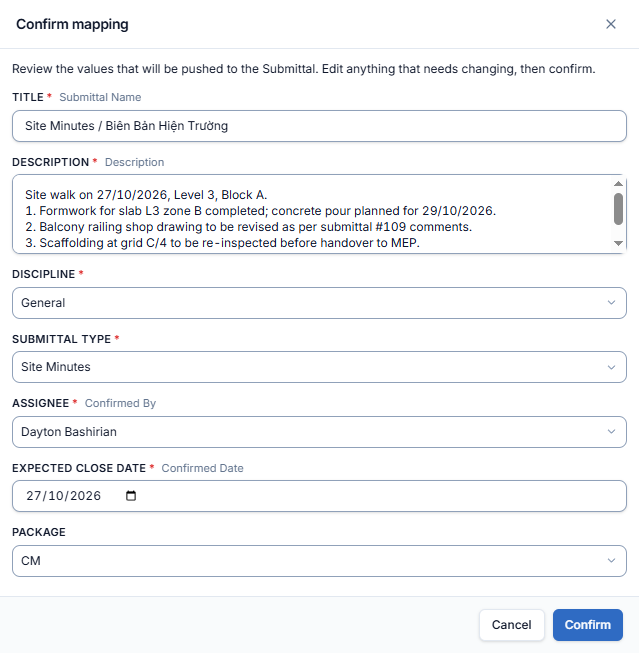
In the editor, click Submit. The Confirm mapping panel opens: "Review the values that will be pushed to the Submittal. Edit anything that needs changing, then confirm."
-
Check and complete the values. Most of them are pre-filled from the form. Fields marked * are required:
- Title*
- Description*
- Discipline*
- Submittal Type*
- Assignee*
- Expected Close Date*
- Package
The small grey label next to a field name shows which form field the value came from, for example Assignee comes from Confirmed By. Some templates also map a Private box; tick it to make the submittal private. See Privacy.
-
Click Confirm, or Cancel to go back to the form.
What happens next
-
AECIS returns to the Submittals list and shows "Status updated".
-
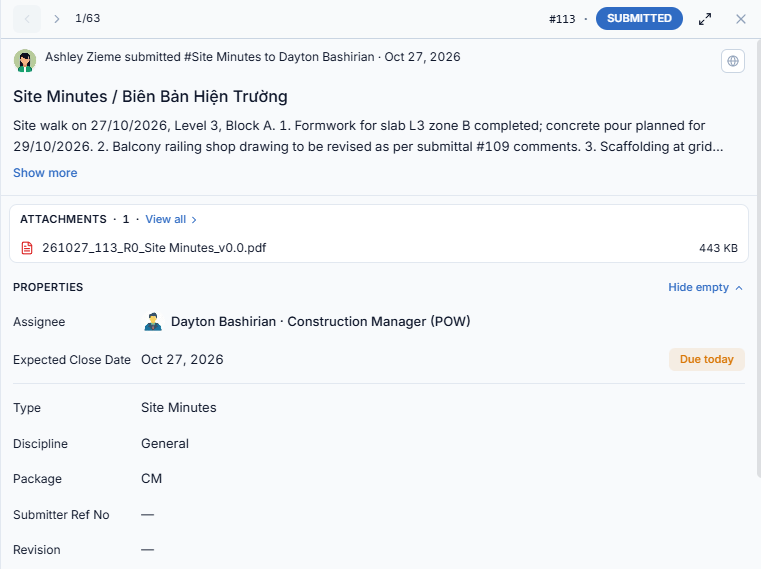
A new submittal is created with status Submitted and the values above. The filled form is attached as a PDF, named like
261027_113_R0_Site Minutes_v0.0.pdf(date, submittal number, revision, template name). -
The DForm leaves your DForm list.
-
The creation email goes to the assignee and the distribution list, as for any new submittal.
Check the mapping carefully. After you confirm, the submittal is created and the emails are sent.