Fill a DForm
The DForm editor shows the form's PDF pages with fillable fields placed on them.
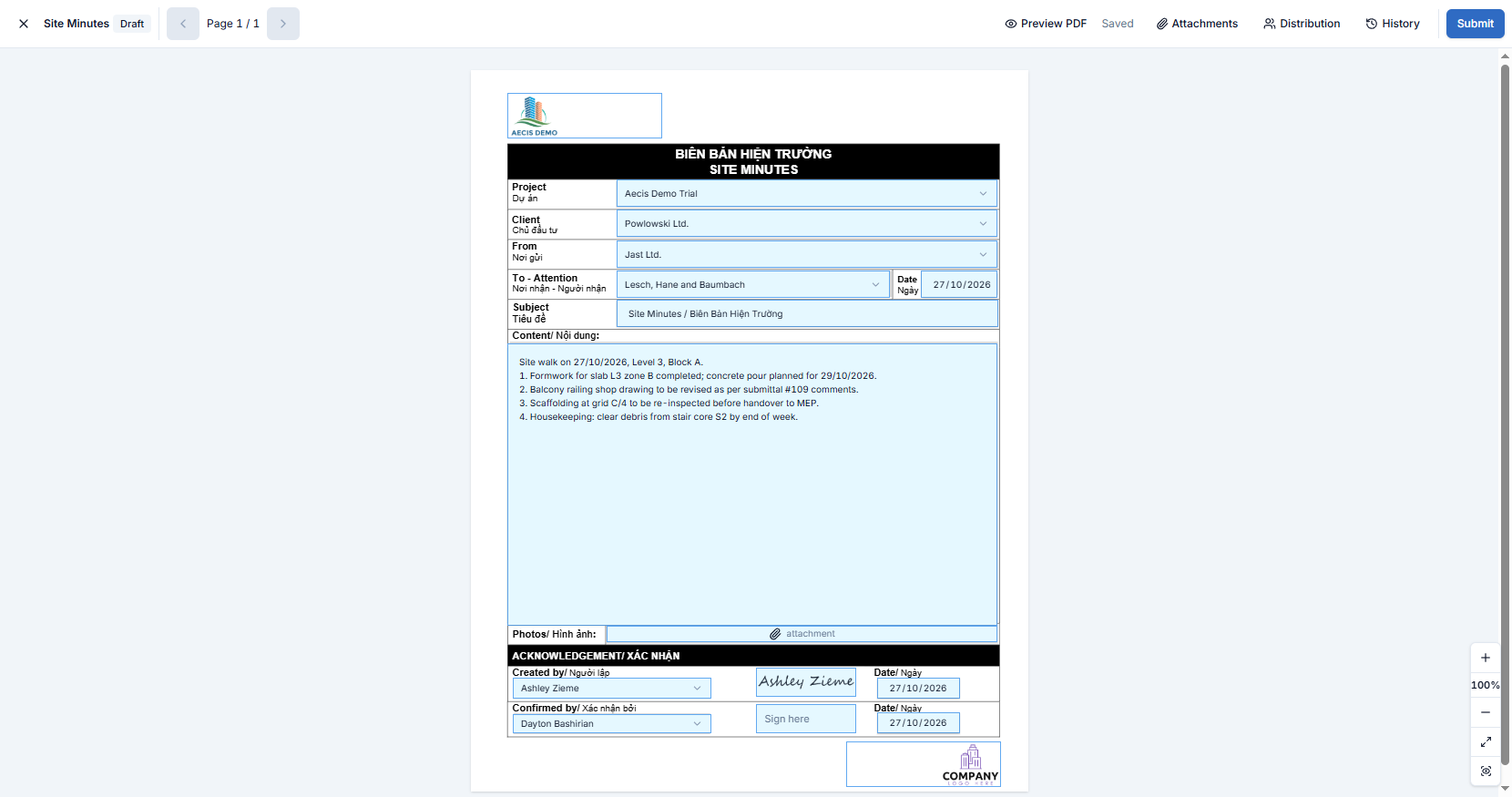
Header
| Control | What it does |
|---|---|
| × | Closes the editor and returns to the list |
| Form name and Draft badge | The form you are editing and its status |
| Page 1 / N | Moves between pages of the form |
| Preview PDF | Shows the form as a PDF with your values filled in |
| Saved / Unsaved | The autosave indicator. It shows Unsaved for a moment after a change, then Saved |
| Attachments, Distribution, History | Open the side panels |
| Submit | Starts submitting the form |
Filling the fields
Click a field on the page and enter the value. The field type depends on the template:
| Field | How to fill it |
|---|---|
| Text | Type the value |
| Date | Pick a date from the calendar |
| Dropdown | Pick one of the listed values |
| Signature | Click the box to open Draw Signature, then sign — see Signing |
| Attachment | Add a file to that field. It is listed under Field files in the Attachments panel |
Signing
Click a signature box to open Draw Signature. Choose how to sign:
- Draw — sign with the mouse. Use undo, redo or Clear to start again.
- Type — type your name; AECIS renders it in a handwriting font.
- Upload — upload an image of your signature.
Tick Set as Default to reuse this signature next time, then click Sign. Back closes the dialog without signing.
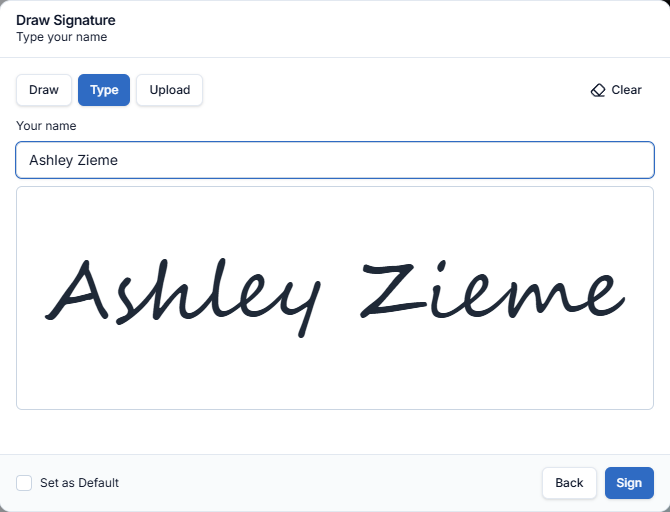
The signature is stored as a file of the form. It appears under Field files in the Attachments panel.
Zoom
Use the zoom cluster at the bottom-right: +, the current percentage, −, and Fit to fit the page to the screen.
tip
You do not need to finish in one sitting. The form stays a Draft in the DForm list until you submit it.