Create a DForm from a Submittal
Start a new form from a template published to the project.
Prerequisites: a project role with Submittal write access; at least one form template published to the project.
Steps
-
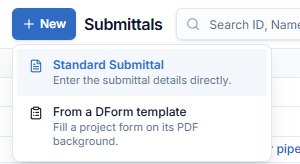
In the Submittals list, click + New. A menu opens with two choices:
- Standard Submittal — "Enter the submittal details directly." This is the usual Create a Submittal panel.
- From a DForm template — "Fill a project form on its PDF background."
-
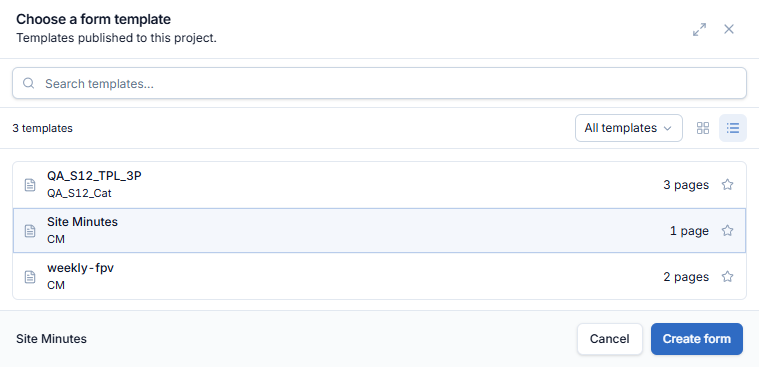
Click From a DForm template. The Choose a form template panel lists the "Templates published to this project". Each card shows the template name, its category and number of pages.
-
Find the template:
- Type in the search box, or pick a category in the All templates filter.
- Switch between grid and list view with the view toggle.
- Click the ☆ on a template to mark it as a favourite.
-
Click a template to select it. The footer changes from "Select a template to continue" to the selected template.
-
Click Create form.
The new DForm opens in the editor with status Draft. It also appears in the DForm list, so you can close it and continue later.