Project Settings ▸ Daily Report
The Daily Report sub-tab of Project Settings configures the module for the whole project. You need Project Admin or License Admin access to open it.
Two things are set here: the report type and the zone scope. Everything about when the report goes out and who receives it lives on the Scheduler event instead.

Report type
Which tabs the edit screen offers, chosen once for the whole project:
| Type | What the edit screen gets |
|---|---|
| Default | Three tabs — Report, Attachments, Photos |
| AVT | The same three plus a Tasks tab and a Handover field |
Project 13 runs on Default, which is why it has no Tasks tab.
Zone scope
Zone scope restricts which branch of the project's DTag tree the Zone Photos tab offers as zones.
-
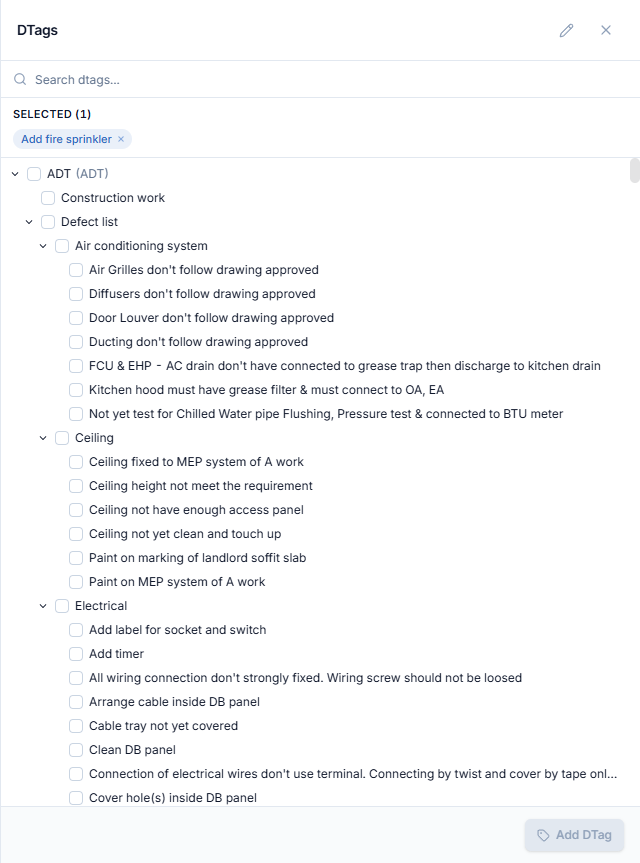
Click Choose zone root to open the DTags picker. It runs against the full, unscoped tree so you can see every branch.
-
Select one node as the scope root. The chosen node shows as a chip under SELECTED.
-
Clear on the settings page removes the scope again.
What that produces:
- The node's children, at every depth below it, become the available zones.
- The node itself is never offered as a zone — it is the branch heading.
- Clearing the selection falls back to the nodes directly under the project's DTag root — not to the whole tree.
- If the chosen node has no children, that node becomes the only available zone.
Scoping a project to the relevant branch keeps report editors from having to hunt through the entire project tree.
What is not configured here
| Setting | Where it actually lives |
|---|---|
| Send time, time zone, recipients | Scheduler ▸ Daily Report event |
| Who can read/write reports | Role & Permission — see Who can do what |