The Scheduled Send
The Daily Report goes out through a Scheduler event, configured under Project Settings ▸ Scheduler. It appears on the Scheduler calendar alongside the project's other rules.
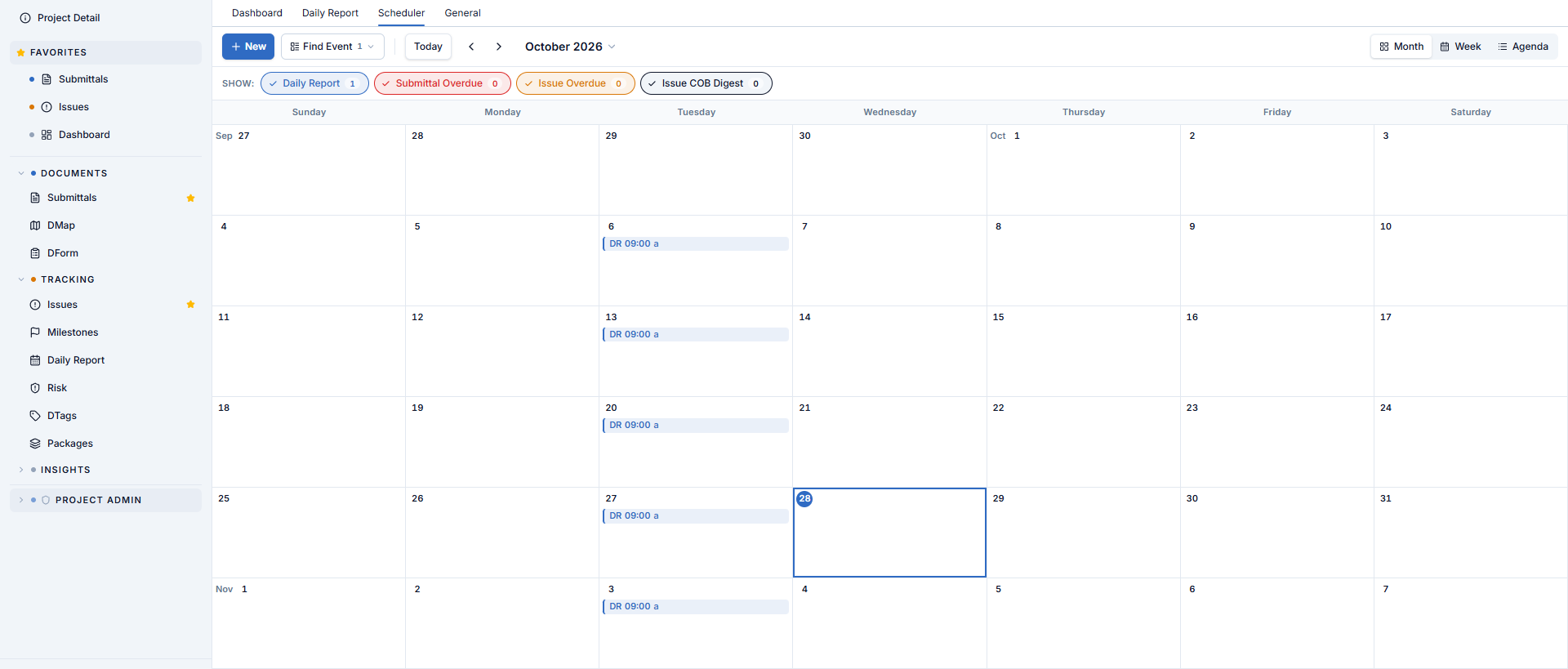
Nothing is pre-provisioned — a new project starts with an empty Scheduler, so until someone creates a Daily Report event, no report is ever compiled or sent.
The SHOW chips above the calendar filter it by rule type, each with its own count. A Daily Report event shows on every date it fires, prefixed DR and stamped with its send time.
Configuring the event
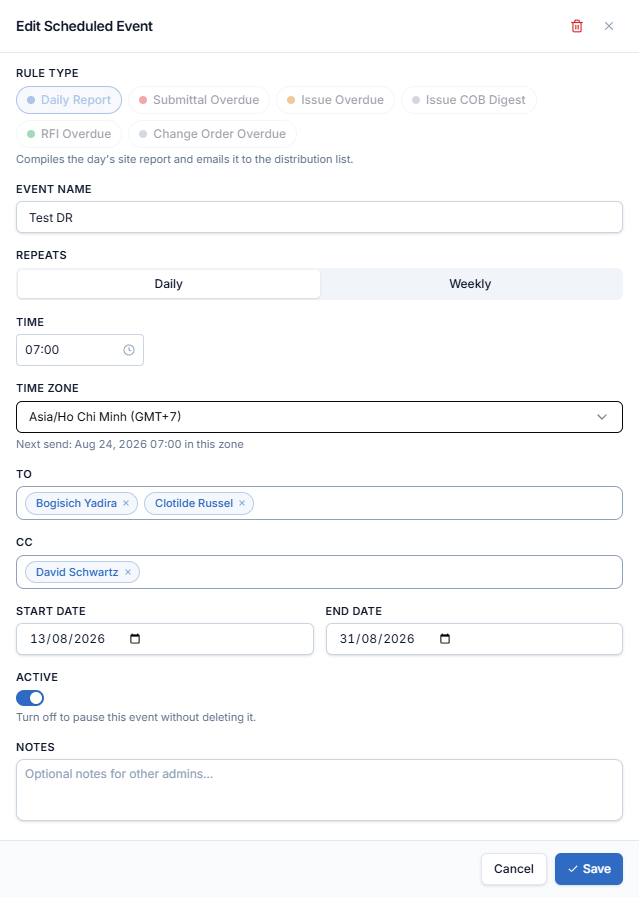
| Setting | Notes |
|---|---|
| Rule type | Picked at the top of the panel — Daily Report, Submittal Overdue, Issue Overdue, Issue COB Digest, RFI Overdue, or Change Order Overdue |
| Event name | Free text; this is the label the calendar shows |
| Repeats | Daily or Weekly. Weekly requires at least one weekday chip; the picker locks the last remaining day so it cannot be unchecked |
| Time | The send time — also shown as the deadline on the edit screen's warning banner |
| Time zone | One of nine: Ho Chi Minh, Singapore, Bangkok, Tokyo, Seoul, Dubai, Sydney, London, UTC. A Next send line under the field previews the next firing in that zone |
| To | Chip-style picker; at least one To recipient is required to save |
| CC | Chip-style picker; the same address cannot appear on both To and CC |
| Start date | When the event begins |
| End date | Optional |
| Active toggle | Turns the event on or off |
| Notes | Free text |
Recipient suggestions come from the project's member directory. A valid email address that is not a project member is accepted as an external recipient.
Daily and Weekly only. A daily report covers one day of site work, so firing it 30 days apart would skip 29 days of site record rather than summarize them. Other rule types, such as Submittal Overdue, do offer Monthly.
If you switch an event's rule type, a Weekly pattern you already selected is preserved as long as the new rule type also offers Weekly. It falls back to Daily only when the new type cannot show the recurrence that was selected.
What happens when the event fires
For the whole project, in order:
- AECIS gathers every stakeholder's current report data — Report tab fields, attachments, photos grouped by zone in their saved order.
- It compiles one PDF per stakeholder, substituting the No Daily Report or No Photo fallback pages where they apply.
- It compiles one merged PDF covering every stakeholder — the
ALLfile. - Every file is saved to the Reports archive under the archive naming convention.
- One notification email goes out for the project — not one per stakeholder.
The notification email
One email per project per run.
Subject — the project abbreviation, DAILY REPORT, and the date:
[SAL][DAILY REPORT] 03-August-2026
Body, in order:
- Header logo.
- A greeting naming the report date and project.
- One line per stakeholder — a download link to their compiled report if they filed one, or a "no daily report" note if they did not.
- An automatic-notification disclaimer.
- A regards line from the sending system.
- A confidentiality notice.
- A "Powered by AECIS" line.
- A support contact line.
There are no file attachments — every stakeholder line is a download link, matching the archive's link-based access.