Filling In a Report
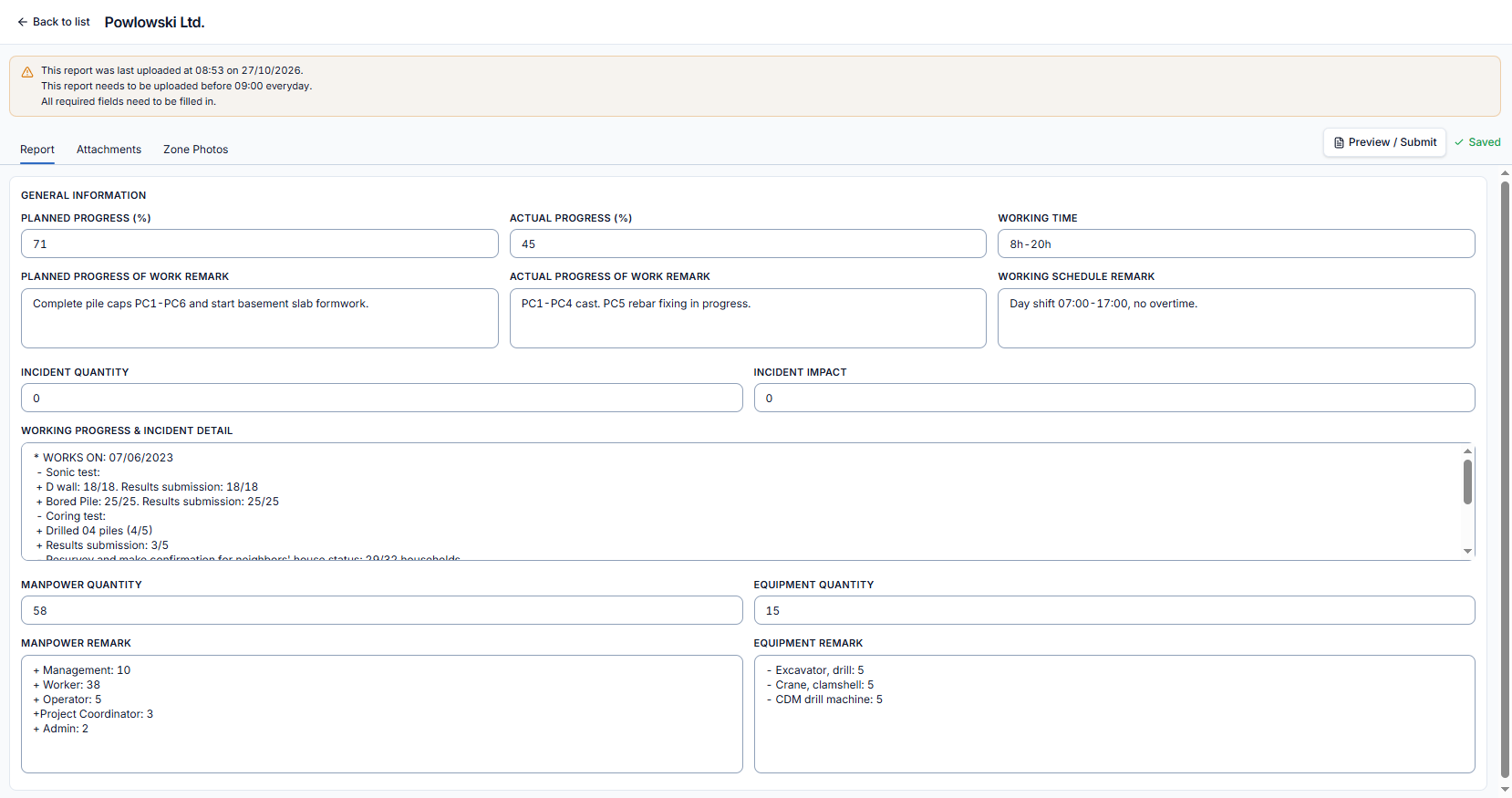
Click Edit on a roster row to open that stakeholder's report. The edit screen replaces the whole screen surface.
The tab shell
| Tab | Contents |
|---|---|
| Report | Progress, working time, incidents, manpower, equipment — described below |
| Attachments | The report's PDF files |
| Zone Photos | Site photos, filed zone by zone |
Every report in the project uses the same form — there is nothing to choose and nothing that varies from one stakeholder to the next.
Standing elements
- Warning banner — shows the last upload timestamp, the configured deadline, and a reminder of the required fields. The deadline is the scheduled send time, so it moves when the schedule does.
- Autosave status indicator — shows pending, saved, or blocked.
Autosave — there is no Save button
Every edit saves by itself after a short pause in typing, so a burst of edits saves once rather than on every keystroke.
- When validation fails, the edit stays unsaved until you correct it — the status indicator shows the blocked state.
- Preview is blocked until validation passes. If you open Preview with an invalid field, AECIS returns you to the Report tab so you can fix it.
The Report tab
| Field | Notes |
|---|---|
| Planned Progress % | Numeric |
| Actual Progress % | Numeric |
| Progress-of-Work remarks | Free text, printed under the progress figures on the compiled report |
| Working Time | Free text, e.g. 6AM – 5PM — not a time picker |
| Working-Schedule remark | Free text, printed under the working hour period |
| Incident Quantity | Numeric |
| Incident Impact | Numeric |
| Incident remark | Free text detail |
| Manpower Quantity + remark | One aggregate quantity plus one free-text remark |
| Equipment Quantity + remark | One aggregate quantity plus one free-text remark |
There is no Zones field on this tab
Zones are chosen entirely on the Zone Photos tab, where the need for a zone actually arises — while filing photos, not while filling in the form.
Validation
Six fields must each be numeric or left blank:
- Planned Progress %
- Actual Progress %
- Equipment Quantity
- Manpower Quantity
- Incident Quantity
- Incident Impact
Everything else is optional. The same rules apply to autosave (silently) and to Preview (which sends you back to the Report tab to fix the problem).